
Updated: May 8, 2026
A founder we worked with a few years ago described his company's IT setup as "organized chaos." His team of thirty ran on a mix of personal Gmail accounts, a shared Dropbox, one shared calendar that nobody trusted, and a Slack workspace with 200 channels. Everything worked, sort of, until it didn't. A prospect asked for their SOC 2 documentation. Shared drives were a maze of folders that three different people had named differently. Half the team's files were on personal accounts that the company had no visibility into, let alone control over.
He had heard of Google Workspace. He thought it was just "business Gmail." It’s a lot more than that.
Google Workspace is Google's suite of cloud-based productivity and collaboration tools for businesses, covering email, file storage, document creation, video conferencing, team messaging, and more. It is what most Bay Area startups and SMEs run on, and for good reason. But "what is Google Workspace" is a question that deserves a real answer, not a feature list, because the difference between a well-configured Workspace environment and a loosely managed one is the difference between IT that scales and IT that quietly accumulates debt. We have helped hundreds of companies get it right. Here is what we would tell you over coffee.
| App | What it does | Microsoft equivalent | Plan availability |
|---|---|---|---|
| Gmail | Business email on your company domain. Ad-free, with phishing and spam filtering, plus deep integration with Calendar and Meet. | Outlook | All plans |
| Drive | Cloud storage and file sharing. Shared Drives (Standard+) belong to the org, not individual users, so files stay when people leave. | OneDrive / SharePoint | All plans |
| Docs | Browser-native word processor with real-time collaboration, automatic version history, and comment threads. | Microsoft Word | All plans |
| Sheets | Cloud-based spreadsheets. Strong for collaborative work; some limitations for complex Excel models and macros. | Microsoft Excel | All plans |
| Slides | Presentation tool with live collaboration. Fewer design options than PowerPoint but faster for team-built decks. | Microsoft PowerPoint | All plans |
| Meet | Video conferencing with dial-in numbers and noise cancellation. Recording and transcription available on Standard and above. | Microsoft Teams | All plans |
| Chat | Team messaging organized into Spaces. Included in all plans; adoption depends on whether the team is already on Slack. | Microsoft Teams | All plans |
| Calendar | Shared calendars, room booking, and appointment scheduling. Every invite auto-includes a Meet link. | Outlook Calendar | All plans |
| Gemini AI | AI assistant built into Gmail, Docs, Sheets, Slides, and Meet. Drafts, summarizes, generates, and analyzes across the suite. | Microsoft Copilot | Standard and above |
What Is Google Workspace?
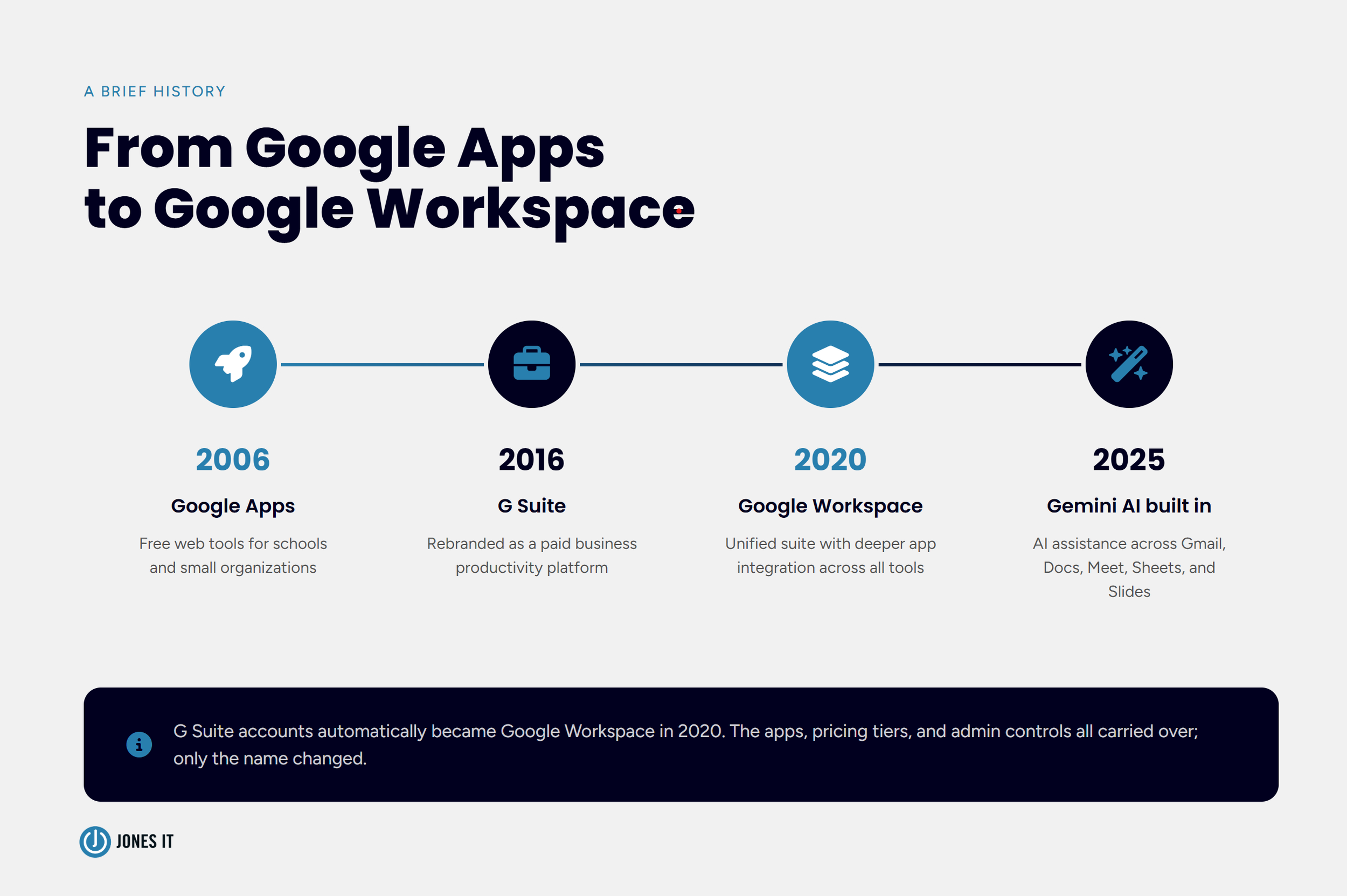
Google Workspace is the current name for what started in 2006 as Google Apps, a free bundle of web-based tools for small organizations. Google launched a paid version in 2007, rebranded the whole thing as G Suite in 2016, and rebranded it again as Google Workspace in 2020. The name has changed twice. The core idea has not: a single subscription that gives every user in your organization a business email address, cloud storage, and a tightly integrated set of productivity tools, all running in a browser.
The Workspace rebrand was not purely cosmetic. Google used the transition to deepen the integrations between its apps, positioning the suite around the idea of a unified workspace rather than a collection of separate products. You can open a Meet call from inside Gmail, edit a Doc while a Meet session runs in a side panel, and have Calendar invite someone to a Sheets file without leaving the event. The integrations are real and they do reduce the amount of context-switching that drains a workday.
One thing worth being clear about upfront: Google Workspace is a paid subscription. The free consumer Gmail and Drive accounts your team may already be using are a different product. Workspace adds custom domain email (yourname@yourcompany.com), admin controls, pooled storage, compliance tools, and enterprise-grade security that consumer accounts do not have.
The Core Google Workspace Apps: What Each One Does
Google Workspace includes a lot of apps. Some of your team will live in every day. Others you may never touch. Here is what the core ones actually do in a business context.
Gmail
Business Gmail through Workspace is ad-free and tied to your company domain. It comes with phishing and spam protection that Google claims blocks more than 99.9% of attacks, which is a meaningful security baseline for companies that are not yet running a dedicated email security layer. It also integrates directly with Google Meet, Calendar, and Chat, so email is less of a silo than it tends to be in other setups. If you want to get more out of it, our Gmail tips and tricks post covers the features most teams never find on their own.
Drive
Google Drive is the cloud storage backbone of Workspace. Files live in the cloud, sync to desktop via the Drive for Desktop app, and can be shared with fine-grained permissions (view, comment, edit). Shared Drives, which are available on Business Standard and above, belong to the organization rather than an individual user, which means files do not disappear when someone leaves. This is a bigger deal than it sounds. We have seen companies lose months of work because a departing employee's personal Drive was the only place certain files lived.
Docs, Sheets, and Slides
Google's browser-native alternatives to Microsoft Word, Excel, and PowerPoint. Real-time collaboration is the headline feature: multiple people editing simultaneously, with changes appearing live. Version history is automatic and granular, so you can see who changed what and when, and roll back if needed. The honest caveat: if your team does heavy formatting in Word or complex modeling in Excel, the transition requires adjustment. For most business documents and collaborative work, Docs and Sheets handle the job well.
Meet
Google's video conferencing tool. Dial-in numbers, noise cancellation, recording (Standard and above), and breakout rooms are all included depending on your plan. Gemini in Meet (Standard and above) can generate meeting summaries and transcripts automatically, which is the kind of feature that sounds like a nice-to-have until your team actually starts using it.
Chat
Team messaging, similar to Slack. Spaces let you organize conversations by project or team. Chat is included in all Workspace plans, but whether your team adopts it depends heavily on whether they are already entrenched in Slack. We generally do not recommend forcing a migration off Slack just because Chat is included, but for teams starting fresh it is a reasonable default.
Calendar
Shared calendars, room booking, appointment scheduling pages, and resource management. The integration with Meet means every calendar invite can include a video call link automatically. For distributed teams scheduling across time zones, Calendar is one of the quieter productivity wins in the Workspace suite.
Gemini in Workspace
Google has integrated its Gemini AI assistant across the Workspace apps. Business Starter gets limited Gemini access in Gmail. Business Standard and above get the full Gemini suite: AI drafting and summarization in Docs, data insights in Sheets, image generation in Slides, meeting summaries in Meet, and more. This is a meaningful differentiator from the previous generation of the product and a real reason to consider Standard over Starter for most growing teams.
Google Workspace Plans: What You Get at Each Tier
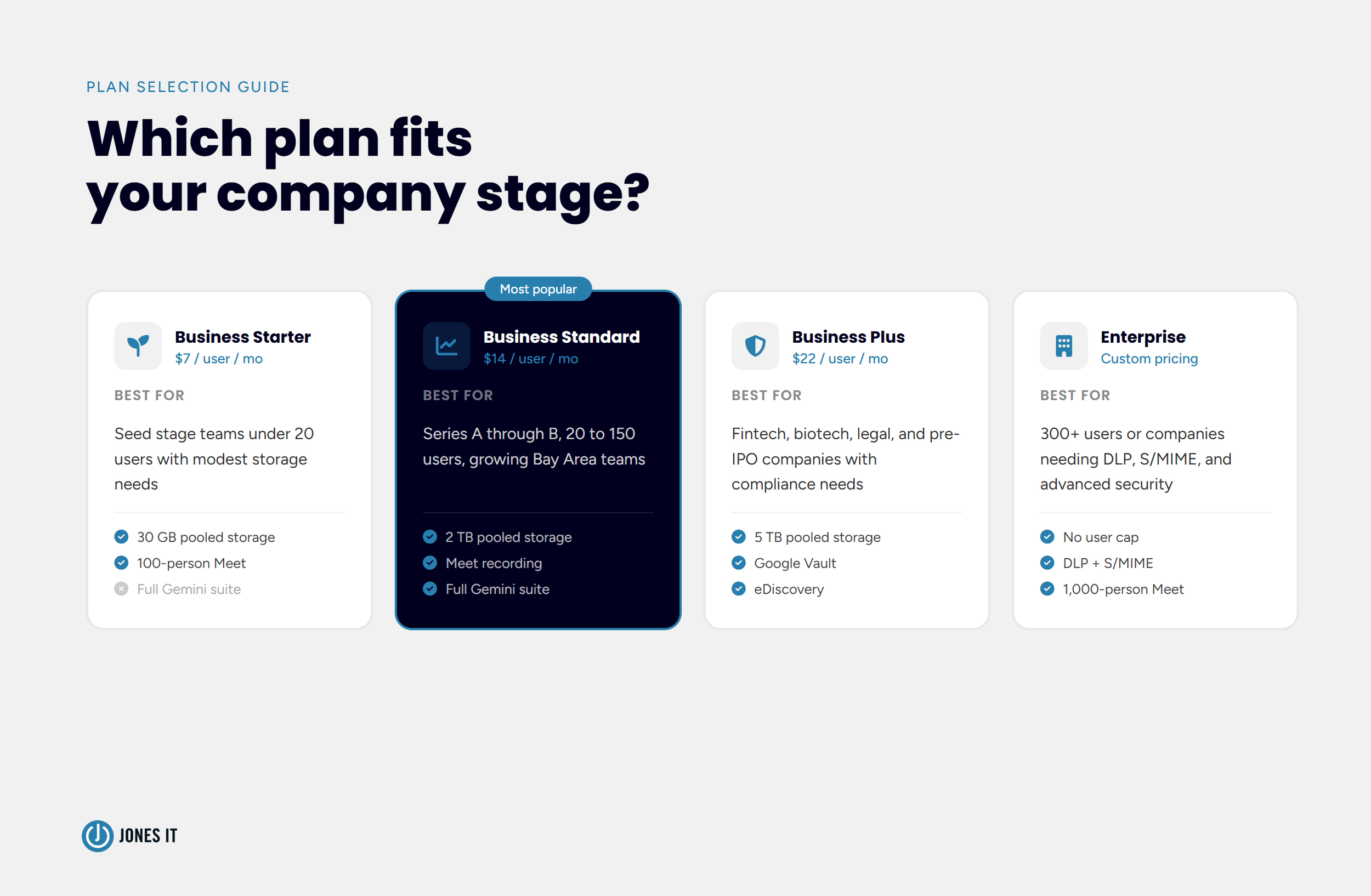
Google Workspace has four main business plans. Prices listed below are annual commitment rates, verified from the Google Workspace pricing page. Monthly billing is available at roughly a 20% premium. Google increased prices across all plans in January 2025, so if you see older figures elsewhere, they are out of date.
| Plan | Annual price | Storage / user | Meet participants | Key extras |
|---|---|---|---|---|
| Business Starter | $7 / user / mo ~$8.40 monthly billing |
30 GB pooled | 100 | Basic Gemini in Gmail |
| Business StandardMost popular | $14 / user / mo ~$16.80 monthly billing |
2 TB pooled | 150 + recording | Full Gemini suite, Shared Drives |
| Business Plus | $22 / user / mo ~$26.40 monthly billing |
5 TB pooled | 500 + recording | Vault, eDiscovery, advanced audit |
| Enterprise | Custom Contact sales or a Google partner |
5 TB+ upgradeable | 1,000 + live stream | DLP, S/MIME, no user cap |
| Prices as of January 2025. All plans billed per user per month. Business tiers capped at 300 users; Enterprise has no user cap. Source: workspace.google.com/pricing | ||||
A few details the table does not capture:
Starter is capped at 30 GB pooled storage per user, which sounds like a lot until your team starts recording Meet calls and storing design files. Most growing companies outgrow it faster than they expect.
Standard is where Gemini unlocks across all apps. For most companies between 10 and 150 users, Standard is the right default.
Plus adds Google Vault, which provides eDiscovery and data retention. This is a non-negotiable feature for companies in regulated industries, fintech, healthcare, or legal, and for any company approaching a SOC 2 audit.
Enterprise is the only plan without a 300-user cap, and it is the only plan where pricing is negotiated directly with Google or through a Google partner rather than purchased online.
You can mix plans across your team. Your engineers and executives might be on Business Standard while a small group with compliance needs runs on Business Plus. This is a legitimate cost-control lever that most companies do not know about.
Google Workspace vs. Microsoft 365: The Honest Comparison
This is the question we get most often from founders who are setting up IT for the first time. We have helped companies migrate in both directions, so we have a real opinion here rather than a diplomatic non-answer.
The pricing is comparable. Microsoft 365 Business Basic starts at $6 per user per month, Business Standard at $12.50, and Business Premium at $22. Google Workspace Starter starts at $7, Standard at $14, Plus at $22. Both offer annual discounts, and both have increased prices in the last couple of years as AI features get bundled in.
The honest difference is architecture and philosophy. Google Workspace is browser-native. Everything lives in the cloud and works best there. Microsoft 365 was built around desktop applications (Word, Excel, PowerPoint, Outlook) and has since added cloud capabilities on top. If your team has strong preferences for or dependencies on desktop Office apps, deep Excel modeling, macros, or Active Directory infrastructure, Microsoft 365 is often the easier path.
For most Bay Area tech companies starting from scratch, we recommend Google Workspace. The collaboration experience is more fluid, the admin console is easier to manage without dedicated IT staff, and the Gmail-native workflow fits how most people in the Bay Area already work. The browser-first architecture also means lower friction for remote and hybrid teams. That said, if you are acquiring a company that runs on 365, or if a key client requires specific Microsoft integrations, that calculation changes.
One area where Microsoft still has a real edge: regulated industries with existing Microsoft infrastructure. If you are running Active Directory, SharePoint, or Teams at scale, replacing that stack with Google Workspace is a significant project. We can help you evaluate whether it is worth it, but we are not going to pretend it is always the right call.
| Category | Google Workspace | Microsoft 365 | Edge |
|---|---|---|---|
| Starting price | $7 / user / mo (Business Starter) | $6 / user / mo (Business Basic) | Tie |
| Architecture | Browser-native. Everything lives in the cloud and works best there. | Desktop-native (Word, Excel, Outlook). Cloud capabilities added on top. | GW for remote teams |
| Real-time collaboration | Seamless. Multiple users editing simultaneously with live cursors across all apps. | Good in cloud versions; less fluid in desktop apps, especially Excel. | Google Workspace |
| Gmail. Cleaner UI, strong spam filtering, tight Calendar and Meet integration. | Outlook. More powerful for rules and folder management; steeper learning curve. | Tie | |
| Spreadsheets | Google Sheets. Great for collaboration; limited on complex macros and pivot tables. | Excel. Industry standard for financial modeling, macros, and advanced data work. | Microsoft 365 |
| Video conferencing | Google Meet. Included in all plans, no separate app needed. | Microsoft Teams. More features; also handles chat, channels, and file sharing. | Tie |
| Admin console | Cleaner, easier to manage without dedicated IT staff. Shorter learning curve. | More powerful but complex. Better suited to large orgs with IT departments. | Google Workspace |
| AI integration | Gemini built in across Gmail, Docs, Sheets, Slides, and Meet on Standard+. | Microsoft Copilot available on Business Standard and above at comparable pricing. | Tie |
| Compliance tools | Google Vault (eDiscovery, retention) on Business Plus and above. | Purview compliance tools on higher tiers. More mature for large regulated orgs. | M365 at enterprise scale |
| Best fit | Tech-forward teams starting fresh, remote and hybrid setups, Bay Area startups. | Companies with deep Microsoft dependencies, heavy Excel users, large enterprise IT. | |
| Pricing as of 2025. Both platforms adjust pricing regularly as AI features are bundled in. This comparison covers Business-tier plans for both products. | |||
How to Choose the Right Google Workspace Plan for Your Team
The plan comparison table tells you what is in each tier. This section tells you which one to actually pick, based on where your company is right now.
Seed stage or very early teams (under 20 users)
Business Starter works if your storage needs are modest and you are not yet thinking about compliance. The honest caveat is that the 30 GB pooled storage limit and the absence of Gemini across all apps mean you will likely outgrow it within a year or two. If your budget allows, starting on Standard saves you the migration headache later.
Series A through Series B (20 to 150 users)
Business Standard is almost always the right call. The full Gemini suite, meeting recordings, shared drives, and 2 TB of pooled storage per user cover the needs of most growing teams. This is the tier we recommend most often for the companies we work with across SoMa, Mission Bay, and the Financial District.
Compliance-sensitive companies (fintech, biotech, legal, pre-IPO)
Business Plus, and potentially Enterprise. Google Vault for eDiscovery and data retention is not optional if you are preparing for SOC 2, HIPAA, or heading toward an IPO. Enterprise adds DLP (data loss prevention), context-aware access, and S/MIME email encryption, which become relevant as your security posture matures. If you are not sure which tier your compliance requirements point to, that is worth a conversation before you commit.
Over 300 users
You are in Enterprise territory by default, since the Business tiers cap at 300 users. Enterprise pricing is custom and negotiated, so the per-user cost depends on your volume and contract terms. A Google partner can often get you better pricing than going direct.
What to Know Before You Set Up Google Workspace
Google Workspace is not hard to get started with. Google makes the self-serve signup path deliberately frictionless. But there is a gap between "signed up" and "set up properly," and the things that fall into that gap tend to show up as problems six months later.
A few things worth getting right from the start:
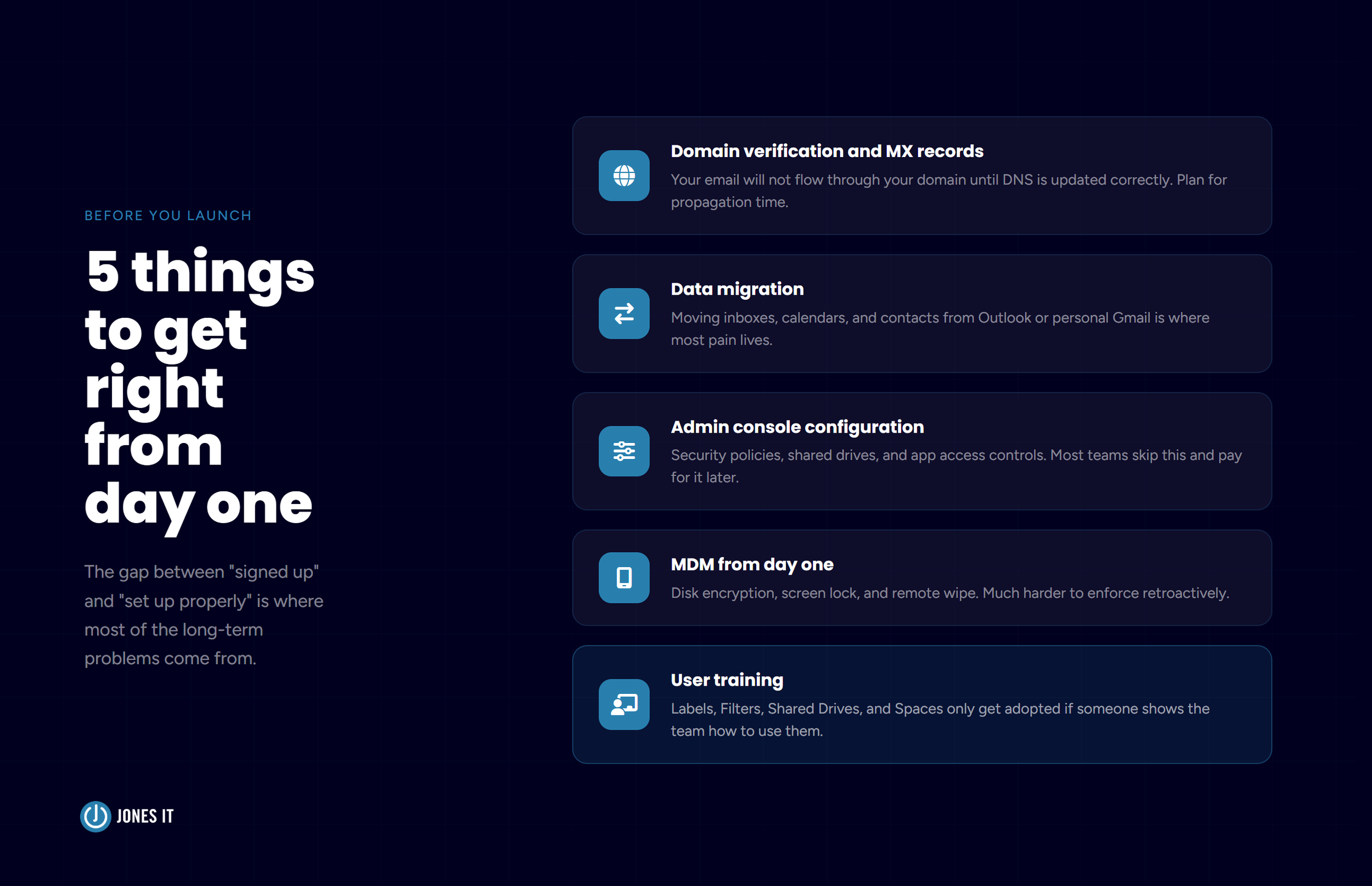
Get Domain Verification and MX Records Right. Your email will not flow through your company domain until your MX records are updated correctly. This is a DNS change that takes time to propagate and can briefly disrupt email if done carelessly. Plan for it, do not rush it.
Data migration. If your team is moving from Outlook, personal Gmail accounts, or another provider, the migration is where most of the pain lives. Large inboxes, shared calendars, and contacts all need to move cleanly. Google provides a migration tool, but the quality of the result depends heavily on the state of the source data.
Admin console configuration. The Google Admin console is where you manage users, enforce security policies, configure MDM (mobile device management), set up shared drives, and control what third-party apps can connect to your Workspace. Most companies skip this in the rush to get email working and then spend the next year discovering the things they failed to configure.
MDM from day one. Endpoint management lets you enforce disk encryption, set screen lock policies, and remotely wipe devices. Retrofitting this after your team has been using Workspace for a year is a much harder conversation than setting it up at the start.
User training. Google Workspace is intuitive enough that most people can figure out the basics without help. But Labels and Filters in Gmail, Shared Drives in Drive, and Spaces in Chat are the kinds of features that only get adopted if someone actually shows the team how to use them. Without that, you get personal Gmail habits in a Workspace environment, which is not the productivity upgrade you paid for.
If you are spinning up Google Workspace for the first time or migrating from another platform, we are happy to help. We have done this for companies at every stage, from five-person seed teams in Dogpatch to pre-IPO companies in the Financial District, and we know where the friction points are. Reach out to us and we can talk through what makes sense for your situation.

About The Author

Hari SubediMarketing Manager at Jones IT
Hari is an online marketing professional with a focus on content marketing. He writes on topics related to IT, Security, and Small Business. He is also the founder and managing director of Girivar Kft., a business services company located in Budapest, Hungary.

In this blog post, we look at the Google Hardware For Meet video conferencing Kit and make hardware recommendations based on the size of your conference rooms.