
Google Drive Tips and Tricks to Organize Files and Work Faster
In the early stages of a security audit for a client in the Financial District, we asked their operations lead where she kept the company's vendor contracts. She thought about it for a moment. Then she opened Google Drive, typed "contract" into the search bar, and got 847 results. Files named "Contract FINAL," "Contract FINAL v2," "Contract FINAL FINAL," and, inevitably, "Contract-use this one." She laughed, a little helplessly, and said they had been on Drive for four years.
This is more common than you might expect. Google Drive is one of those tools that is easy enough to start using that most teams never stop to think about how they are using it. You sign up, you get storage, you start dragging files in. Four years later, you have a sprawling My Drive that nobody can navigate, a "Shared with me" tab that is a graveyard of things people sent you once in 2021, and a folder called "Archive" that everyone is slightly afraid to open.
The good news is that Drive has features specifically designed to fix all of this. They are just not the ones Google puts on the homepage. Here are six Google Drive tips and tricks we share with every team we onboard, covering the features that actually change how a business works with its files.
In this post:
Use Shared Drives Instead of My Drive for Anything Team-Related
Master Drive's Search Operators
Set Sharing Permissions Deliberately
Use Drive for Desktop in Streaming Mode
Add Shortcuts Instead of Copying Files
Use Version History Before You Need It
1. Use Shared Drives Instead of My Drive for Anything Team-Related
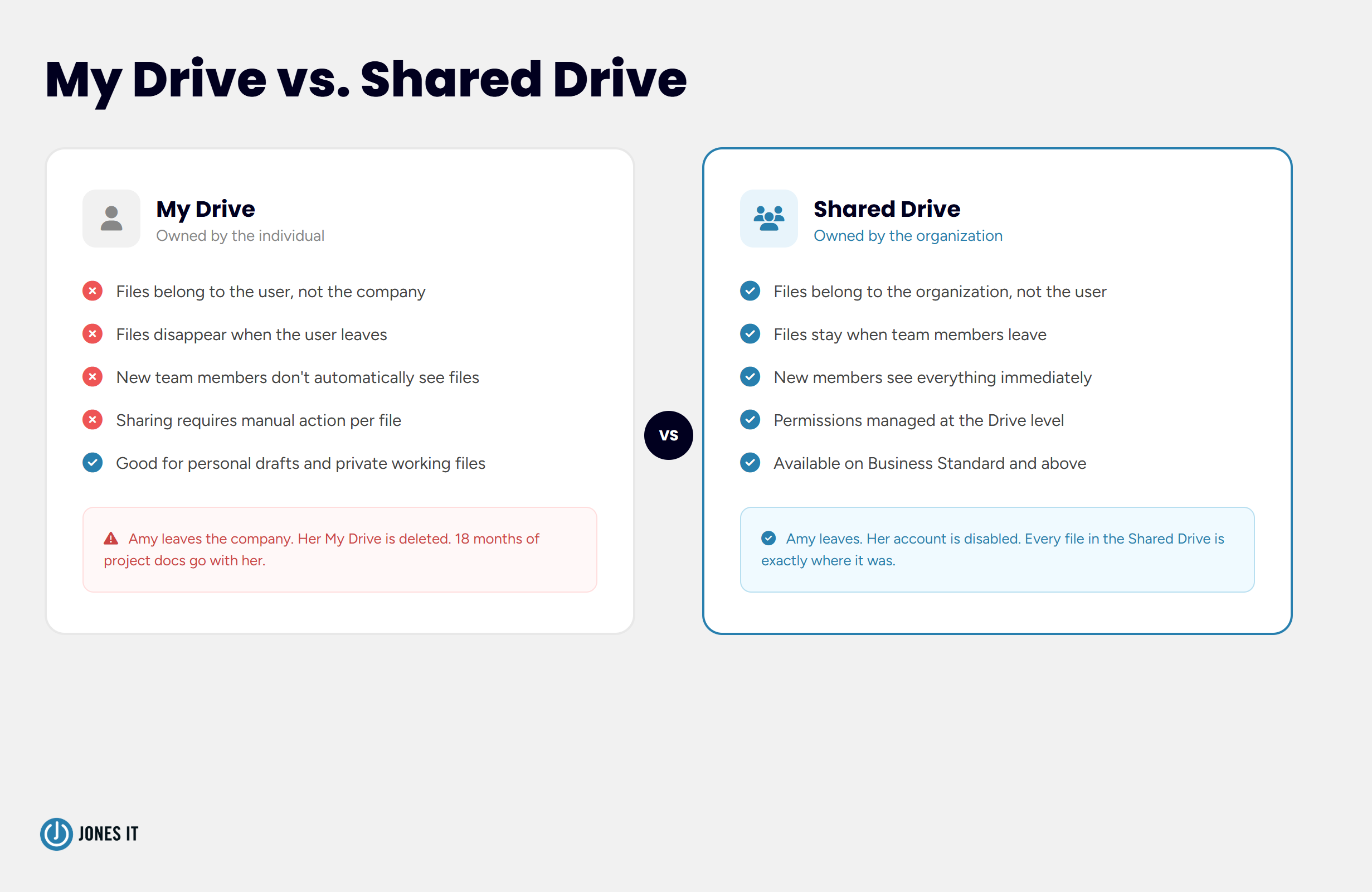
Files in Shared Drives belong to the organization, not the individual, so they stay when people leave. This is the most important tip on this list by a significant margin, and the one most teams get wrong. Here is the problem with My Drive: files stored there belong to the individual user, not the organization. When someone leaves the company, their My Drive goes with them. If an admin does not transfer ownership before the account is deleted, those files are gone.
We have seen this happen to companies that thought they were being careful. Someone leaves, IT disables the account, and three weeks later a colleague realizes that eighteen months of project documentation has quietly vanished. It is an avoidable problem, and Shared Drives are how you avoid it.
Files in a Shared Drive belong to the organization. When a team member leaves, the files stay. New members added to the Shared Drive immediately see everything that belongs to it. There is no "did you share that with me?" friction, no hunting through "Shared with me" for files a former colleague sent two years ago. The Drive is the team's, and it stays that way.
The practical guidance: use My Drive for personal working files, drafts you are not ready to share, and documents that have no organizational relevance. Everything else, anything your company would want to keep or access if you left tomorrow, belongs in a Shared Drive. If you are not sure which, the answer is almost always the Shared Drive.
Shared Drives are available on Business Standard and above. If your team is still on Business Starter and you have more than a handful of people, this feature alone is worth the upgrade. Google's Shared Drives documentation covers the setup in detail.
2. Master Drive's Search Operators
Drive's search operators let you filter by file type, owner, date, and sharing status, cutting a five-minute file hunt down to seconds. Most people search Drive the same way they search the internet, i.e., type a word, hope something useful comes up, scroll through the results, give up. Drive's search is actually much more powerful than that, and knowing a handful of operators cuts a five-minute file hunt down to about ten seconds.
The operators that get used most often in a business context:
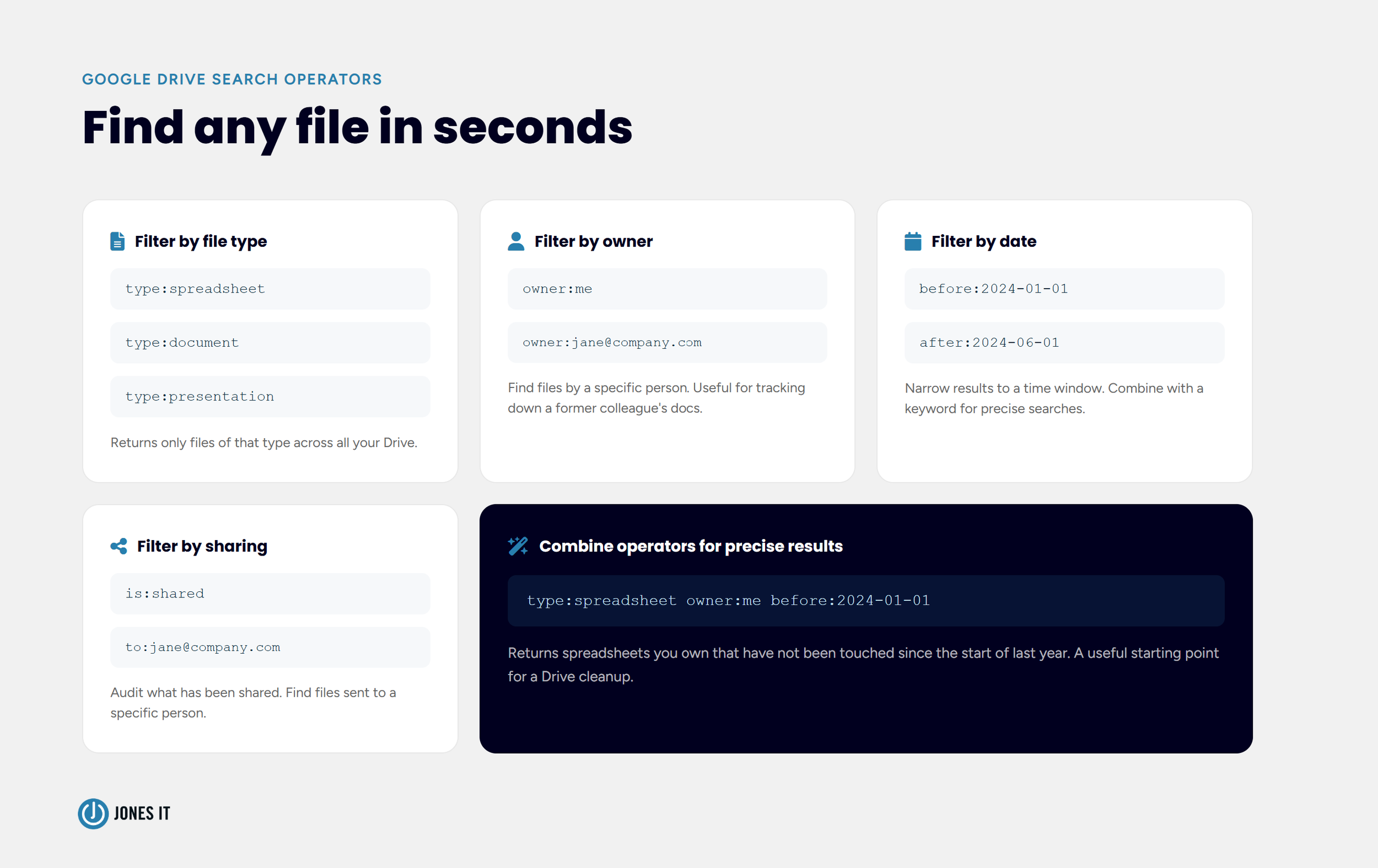
type:document, type:spreadsheet, type:presentation - filter results to a specific file type. Useful when you remember what kind of file you are looking for but not what it was called.
owner:me - shows only files you own, which is a fast way to clean up My Drive or find something you created.
owner:name@company.com - finds files owned by a specific colleague. Useful when tracking down documents a former team member created.
before:2024-01-01 and after:2024-01-01 - narrow results to a date range. Combine with a keyword for highly specific searches.
is:shared - finds files that have been shared with others, helpful for auditing what has gone outside the organization.
to:name@company.com - finds files you have shared with a specific person.
You can combine these. A search like
type:spreadsheet owner:me before:2024-01-01 finds spreadsheets you own that have not been touched since the start of last year; a useful starting point for a Drive cleanup.
The operators work in the Drive search bar at the top of the page. You do not need to install anything or change any settings. They work in the mobile app too, though the on-screen keyboard makes typing them slightly more annoying.
3. Set Sharing Permissions Deliberately
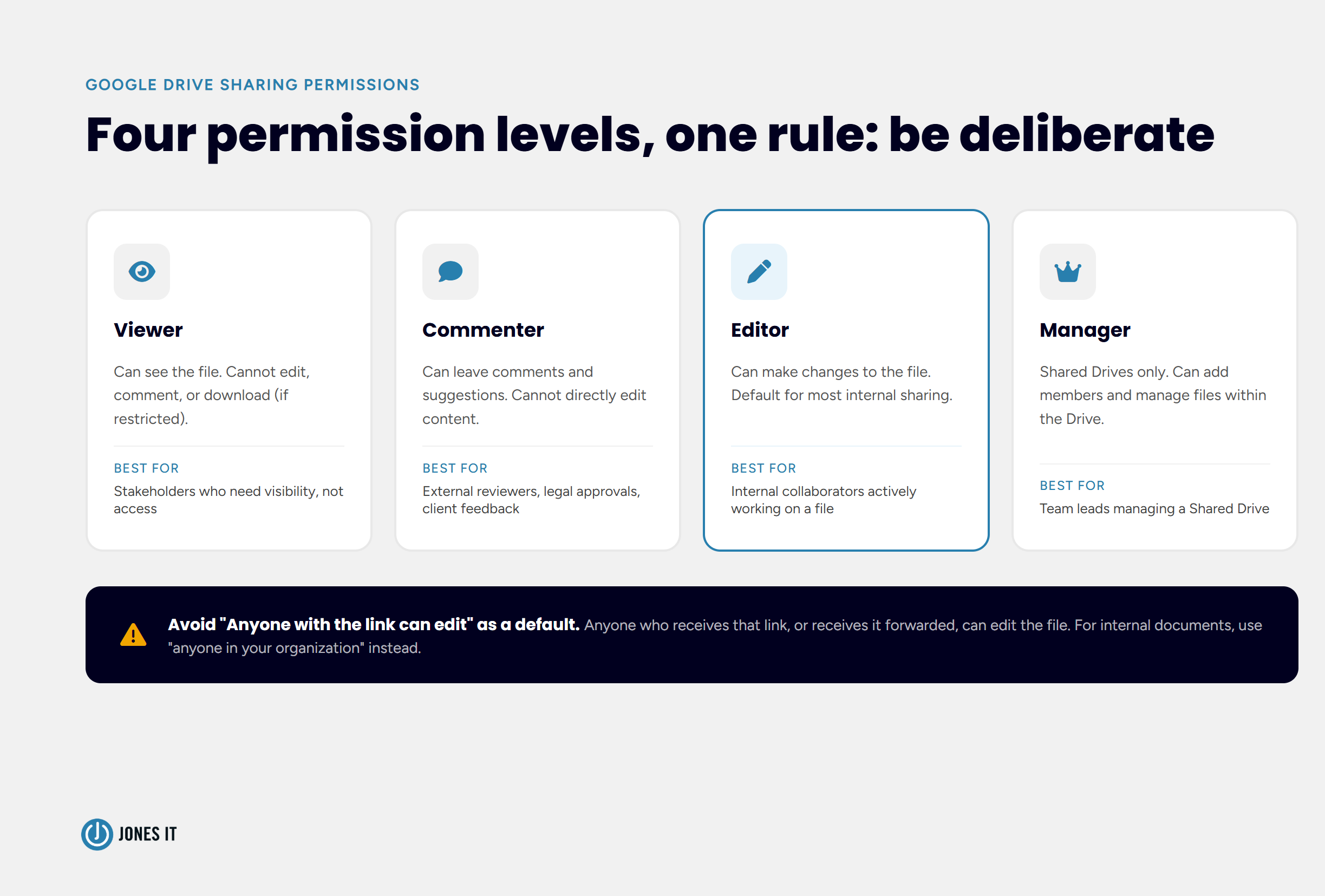
Choosing the wrong sharing setting is one of the most common causes of accidental data exposure in Google Workspace. "Anyone with the link can edit" is a default that has quietly caused more security incidents than most teams realize. It is the sharing setting that gets clicked when someone is in a hurry and just wants to send a file fast. It means anyone who receives that link, or receives it forwarded from someone else, or finds it in a Slack archive two years from now, can edit the file. For internal working documents that is usually fine. For anything sensitive, it is not.
Drive has four permission levels worth understanding:
Viewer - can see the file but cannot make any changes or download it (if you restrict downloads).
Commenter - can leave comments and suggestions but cannot directly edit the content. This is the right setting for external reviewers and approvers.
Editor - can make changes to the file. The default for most internal sharing.
Manager - Shared Drives only. Can add members and manage files within the Drive. Reserve this for team leads.
Beyond the permission level, pay attention to who the sharing is scoped to. The options are: specific people (by email address), anyone in your organization with the link, and anyone with the link. The middle option, anyone in your organization, is a reasonable default for most internal documents. "Anyone with the link" should be used deliberately, not by default.
One setting that most admins miss: in the Google Admin console, you can restrict external sharing entirely for specific Shared Drives, or require approval before files are shared outside the organization. For Series A and B fintech and biotech companies preparing for SOC 2 or HIPAA audits, this is worth configuring from day one rather than after an incident. Our cybersecurity and compliance team helps clients set this up as part of a broader Google Workspace security review.
4. Use Drive for Desktop in Streaming Mode
Stream mode keeps files in the cloud and fetches them on demand, preserving local disk space without sacrificing access. Drive for Desktop is the app that makes your Google Drive accessible as a folder on your Mac or PC, the same way Dropbox or OneDrive works. Most people either do not have it installed, or have it installed and have never thought about how it is configured. The configuration choice matters more than most people realize.
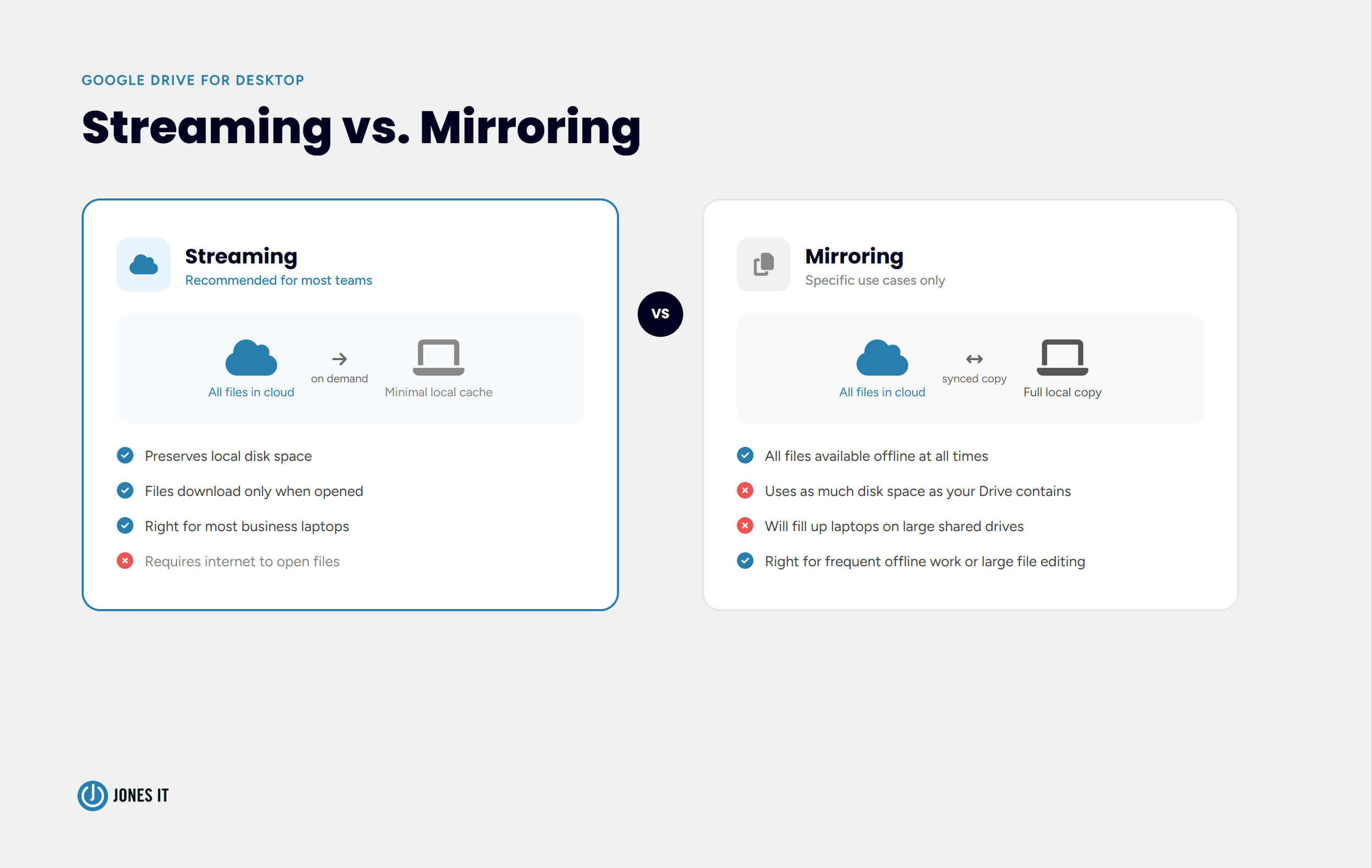
Drive for Desktop has two sync modes:
Stream files keeps your files in the cloud and downloads them on demand when you open or access them. Your local disk only holds a temporary cache. This is the right choice for almost every business laptop, where storage space is limited and most files do not need to live locally all the time.
Mirror files keeps a full local copy of everything in your Drive on your computer. Files are available offline at all times, but it uses as much local disk space as your Drive contains. A team with 2 TB of Shared Drive storage on mirroring mode will eventually fill up every laptop on the team.
The practical recommendation is to use streaming for most users, and mirroring for specific situations where offline access to a large volume of files is a genuine need, like a team member who works regularly on flights, or someone who handles large video or design files that are slow to stream.
To check or change your sync mode, open Drive for Desktop from your menu bar or system tray, click the gear icon, go to Preferences, and look at the sync options for each connected Drive and folder. You can set different modes for different folders, which is useful if you want one local project folder mirrored while everything else streams. Google's Drive for Desktop help page walks through the full setup.
5. Add Shortcuts Instead of Copying Files
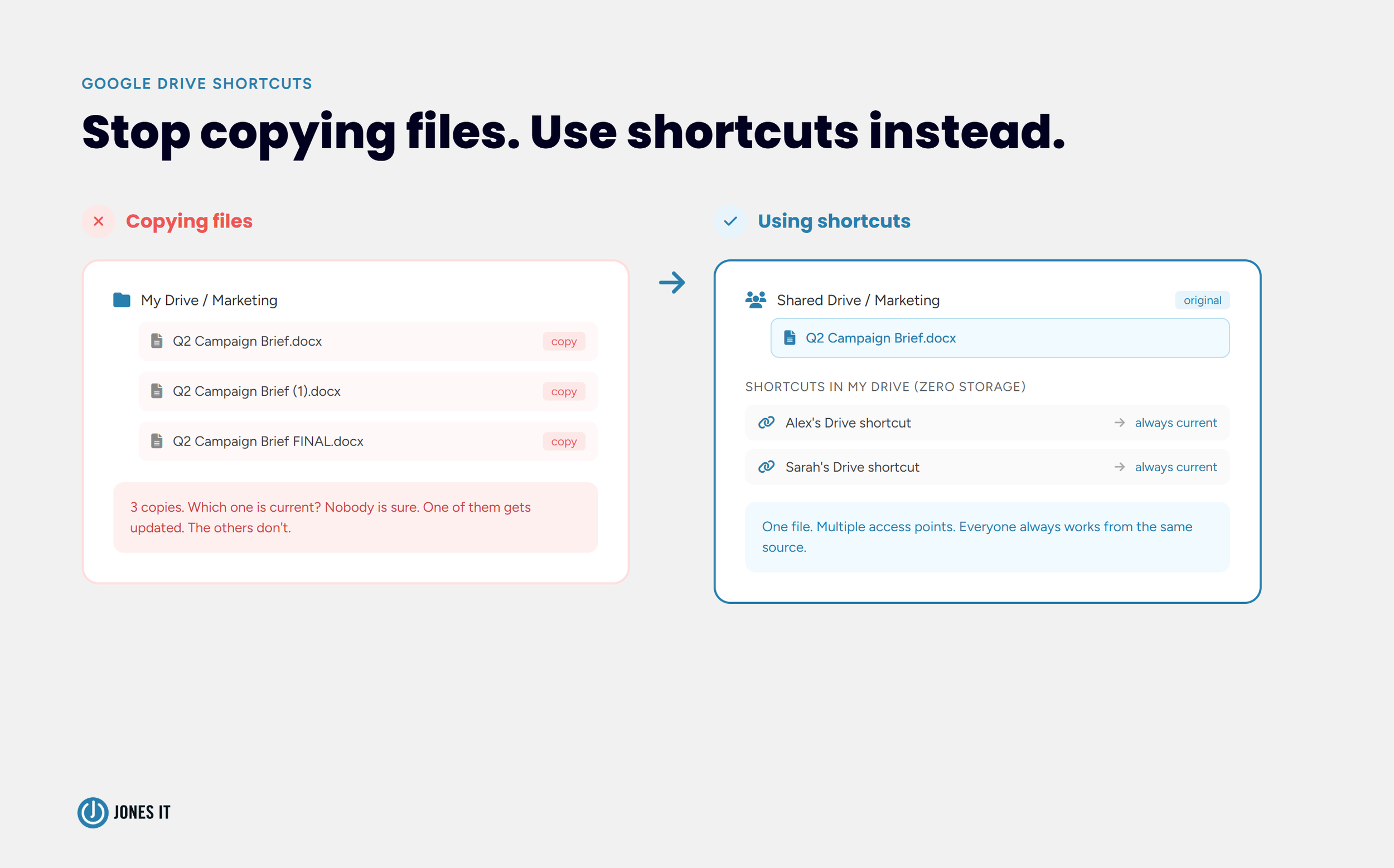
Shortcuts point to the original file and take up zero storage, eliminating the duplicate-version problem that plagues most shared drives. Here is a behavior pattern we see on almost every team: someone shares a file with a colleague, the colleague copies it into their own My Drive so they can find it again later, and now there are two versions of the file. One of them gets updated. The other one does not. Six weeks later nobody is sure which one is current.
The fix is shortcuts. A shortcut in Drive is a pointer to the original file -- it takes up zero storage, it always reflects the current state of the original, and it lets you organize and access files without creating duplicates. Adding a shortcut to your My Drive is the equivalent of bookmarking the original file, not downloading a copy of it.
To add a shortcut to any file or folder you can see in Drive, right-click it and select Organize > Add shortcut. Choose where in your Drive you want the shortcut to live, and click Add. The original file does not move. Everyone with access to it still works from the same source. Your shortcut just gives you a quick path to it from wherever you have placed it.
This is particularly useful for Shared Drive files that multiple teams reference. Rather than having everyone dig through the Shared Drive hierarchy, each team member can add a shortcut to the files they use regularly and organize them however makes sense for their own workflow. One file, multiple access points, no duplication.
6. Use Version History Before You Need It
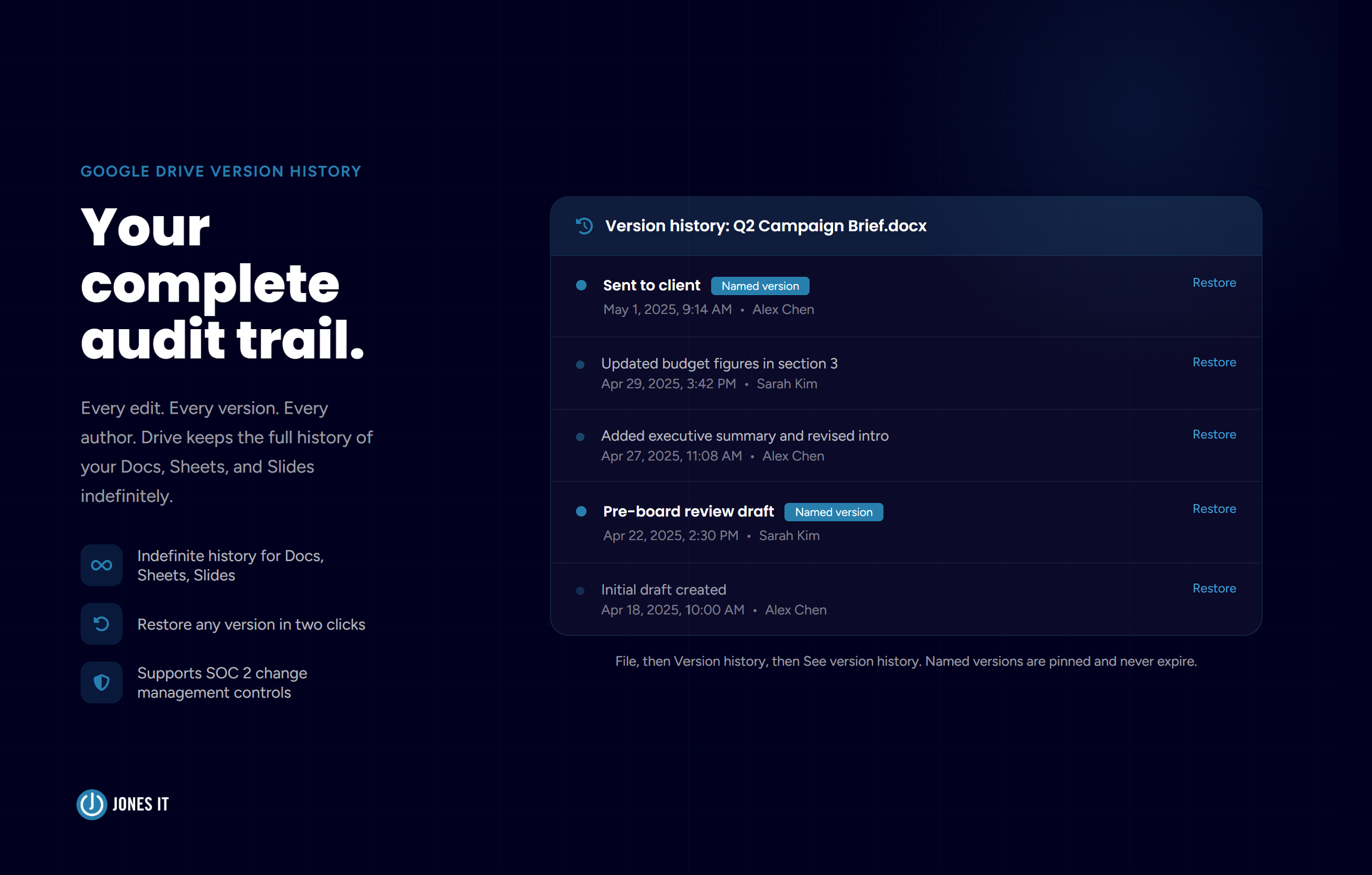
Every Google Doc, Sheet, and Slide keeps a full, indefinite edit history with timestamps and attributed changes, giving you a complete audit trail and the ability to restore any previous version.Version history is one of those features that nobody thinks about until the moment they desperately need it, and then they are very glad it exists. Every file in Google Drive keeps an automatic record of its edit history. For Google Docs, Sheets, and Slides, this history is kept indefinitely; for other file types uploaded to Drive, it goes back 30 days or 100 versions.
The practical uses come up more often than people expect. Someone overwrites a section of a document they meant to keep. A spreadsheet formula gets broken by an edit and nobody is sure when it happened. A client-facing document gets changed after the version that was sent out, and you need to recover the original. In all of these situations, version history is the answer.
To access version history for any Google Doc, Sheet, or Slide, go to File, then Version history, then See version history. A panel on the right shows every saved version with timestamps and the names of who made edits. Click any version to preview it, and click Restore this version to revert. For other file types in Drive, right-click the file, select Manage versions, and you will see the available history there.
The feature we recommend building into your workflow before something goes wrong: named versions. Before you make a significant edit to an important document, or before you share a document externally, go to File > Version history, and select Name current version. Give it a descriptive label, something like "Sent to client 2025-05-01" or "Pre-board-review draft." Named versions are pinned in the history and never expire, even if the 30-day or 100-version limits apply to the surrounding history.
For teams in regulated industries, this is also worth knowing from a compliance angle. Version history gives you a timestamped audit trail of who changed a document and when, which is useful context for SOC 2 reviews and other compliance frameworks that ask about document controls. Specifically, SOC 2 Trust Service Criteria around logical access and change management often require demonstrating that document modifications are tracked and attributable; version history in Drive satisfies that requirement for files managed within Google Workspace.
Getting More Out of Google Drive
These six Google Drive tips address the most common gaps we see when teams have been using Drive for a while without much structure. Shared Drives and permissions are governance basics that tend to get skipped in the rush to get everyone working. Search operators and shortcuts are productivity habits that most people never discover on their own. Drive for Desktop configuration is a one-time setup choice that has ongoing consequences. Version history is insurance that costs nothing to set up.
The pattern across all six is the same one we see with Gmail: the tools are already there, already paid for, already running in the background. The difference between a team that gets real value out of Google Workspace and a team that is just using expensive cloud storage is usually setup, habits, and a bit of onboarding.
If your team is running Google Workspace and you have a sense that you are not getting everything out of it that you should be, that is worth a conversation. We help Bay Area companies get their Google Workspace environments set up properly, and we fix the organizational debt that builds up when teams have been self-managing for a few years. Reach out to us and we can take a look at where you are.



Mac vs. PC for startups isn't a company-wide choice; it’s a per-role one. Use this framework to match hardware to software needs and efficiently manage a mixed fleet.