
Updated: July 13, 2026
Last summer, a twelve-person fintech startup in SoMa called us mid-panic. Their new tower server kept shutting itself down every afternoon during a heat wave, right as the team needed it most. They had set it up on a shelf in a supply closet, door shut, no airflow, wedged next to a stack of loose cables. The hardware wasn't the problem. Where they put it was.
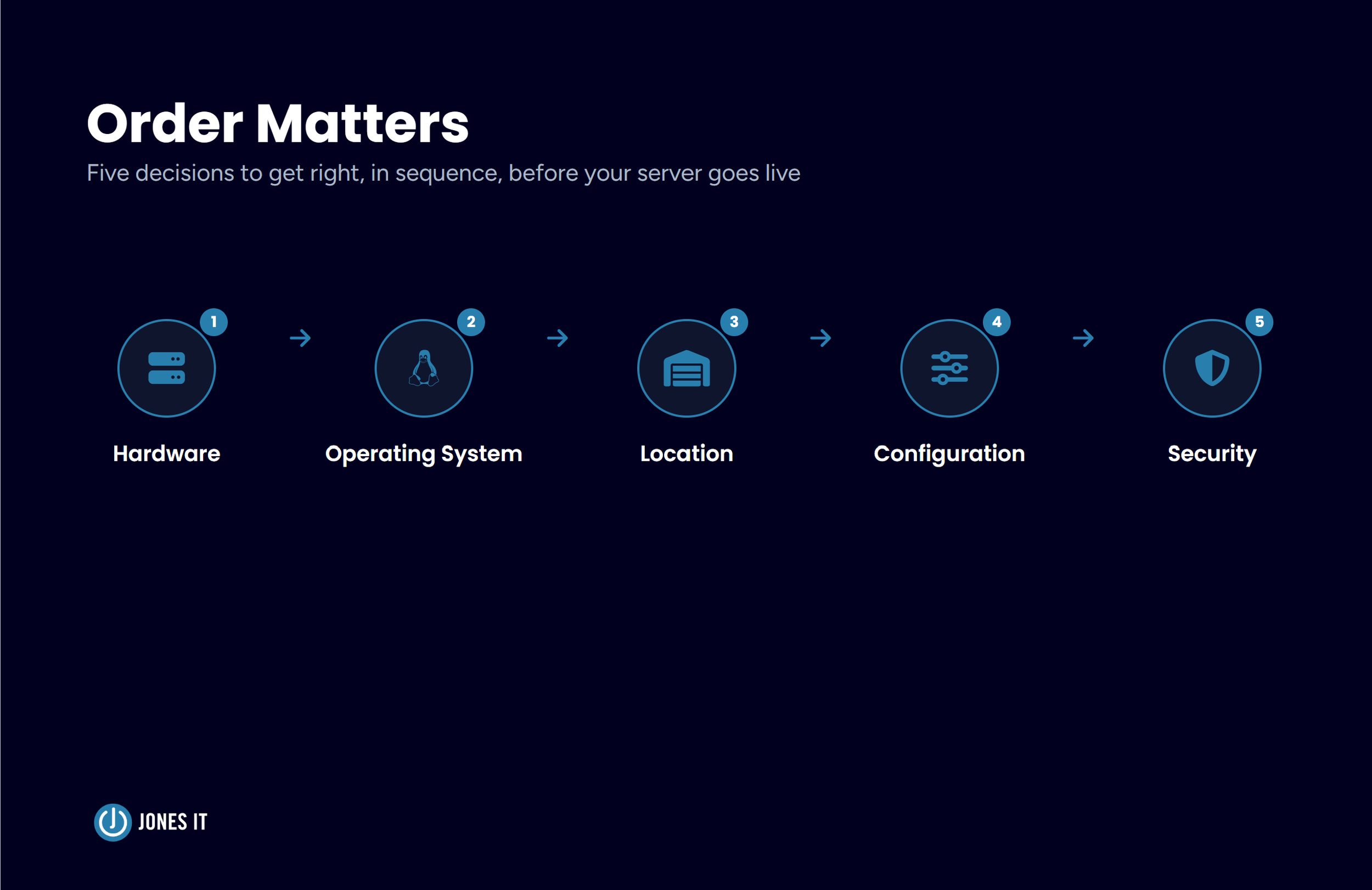
Setting up a server for the first time involves more decisions than most founders expect: what hardware to buy, what operating system to run, where it physically lives, how to configure it, and how to keep it secure. Skip any one of these and the mistake tends to surface later, usually at the worst possible time.
This guide walks through those decisions in order. We've written deeper posts on a few of the individual pieces, so we'll point you to those along the way rather than repeating them here.
Choosing Your Server Hardware
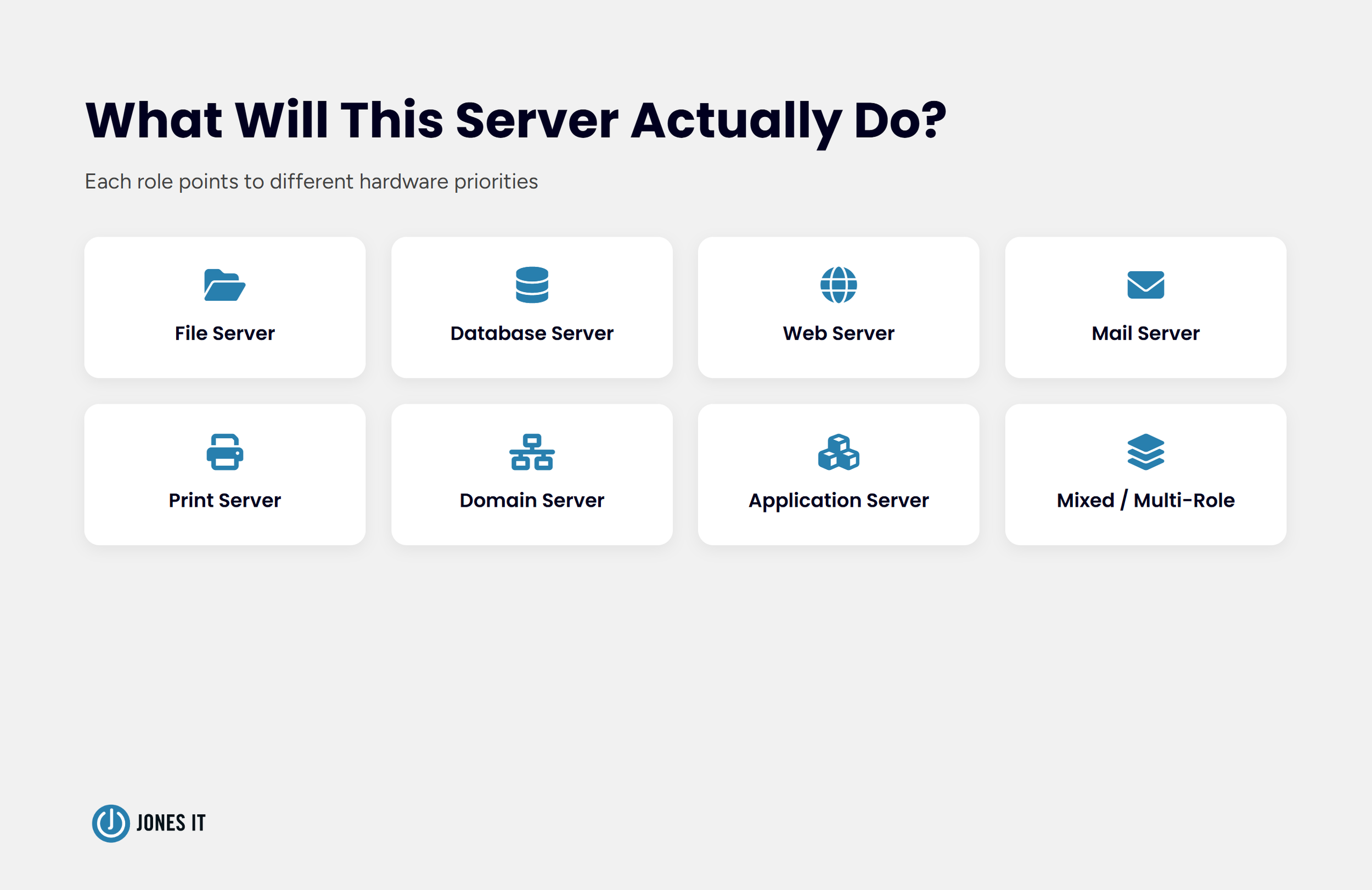
Servers are typically built around a specific role: file server, database server, web server, mail server, print server, domain server, or application server. Each role has different priorities. Database servers lean on fast drives and RAID redundancy. Web servers benefit from generous RAM. File servers want multiple hot-swappable drive bays. Knowing which role your server will play tells you most of what you need about CPU, memory, and storage before you look at a single spec sheet.
It's worth resisting the urge to buy one server that tries to do everything at once. A single overloaded machine handling file storage, email, and a database simultaneously tends to become a bottleneck for all three, and it becomes a single point of failure for your entire business at the same time. Smaller, purpose-built setups are usually easier to troubleshoot and easier to scale piece by piece as you grow.
Form factor is the other major decision: tower, rack, or blade. A tower fits in an office corner and works for most first-time server purchases. A rack makes sense once you're running more than one server or need serious storage density. Blade servers are a data center solution most small businesses will never need.
We've covered this in more depth in our guide to servers for small business, and if you're ready to compare specific models, our current picks for best servers for small and medium businesses is worth a look.
Choosing a Server Operating System
Servers need an operating system built to support many simultaneous users reliably, not the same OS running on your laptop. The main options for a small business today are Windows Server, Ubuntu Server, and Red Hat Enterprise Linux, along with two RHEL-compatible alternatives, Rocky Linux and AlmaLinux, that matter more than they used to.
Here's why that last part matters. For years, CentOS was the default free alternative to RHEL, and plenty of older guides, including ours, still recommend it. CentOS as a stable, traditional release no longer exists. Red Hat discontinued it in favor of CentOS Stream, a rolling release not meant for production stability, and the last supported version of CentOS reached its end of life in mid-2024. I still run into IT hobbyists recommending CentOS out of habit, and I understand the instinct. It was reliable for over a decade. Recommending it today means recommending an operating system that no longer receives security patches, which is a real problem for anything handling client data.
Rocky Linux and AlmaLinux emerged specifically to fill that gap. Both are free, both aim for close compatibility with Red Hat Enterprise Linux, and both come with roughly a decade of support per release. Either is a reasonable drop-in replacement if CentOS is what you had in mind.
So how do you actually choose between these? A few factors matter more than the rest.
User-friendliness: Windows Server has a look and feel close to the desktop Windows most teams already know, which matters if you don't have dedicated IT staff. Linux distributions have a steeper learning curve and generally need someone comfortable with a command line.
Support: Microsoft provides direct commercial support for Windows Server. Community Linux distributions rely more on documentation and community forums, though Rocky Linux and AlmaLinux both offer paid enterprise support options if you want that safety net.
Customization: Linux distributions are generally more flexible if you or your IT provider are comfortable configuring them by hand.
Cost: Linux options are free to run. Windows Server carries licensing costs, though that has to be weighed against the cost of the technical expertise Linux administration requires.
Microsoft's current release is Windows Server 2025, though Windows Server 2022 remains a reasonable choice for now if a vendor requirement points you there. On the Linux side, Ubuntu Server and Red Hat Enterprise Linux remain solid, well-supported choices, alongside Rocky Linux and AlmaLinux as the free RHEL-compatible options.
If you're not sure where to land, the honest shortcut is to match whatever your team already knows. A Windows-based office with no Linux experience on staff will spend far more on training and troubleshooting than it saves in licensing fees by choosing a free Linux distribution nobody can actually administer.
Picking a Location for Your Server
That SoMa startup's problem wasn't the server. It was the closet. A dedicated space for your server isn't optional, even for a single tower. Beyond isolating the noise, controlling physical access to the server reduces real security risk, and for some businesses it's close to a regulatory requirement.
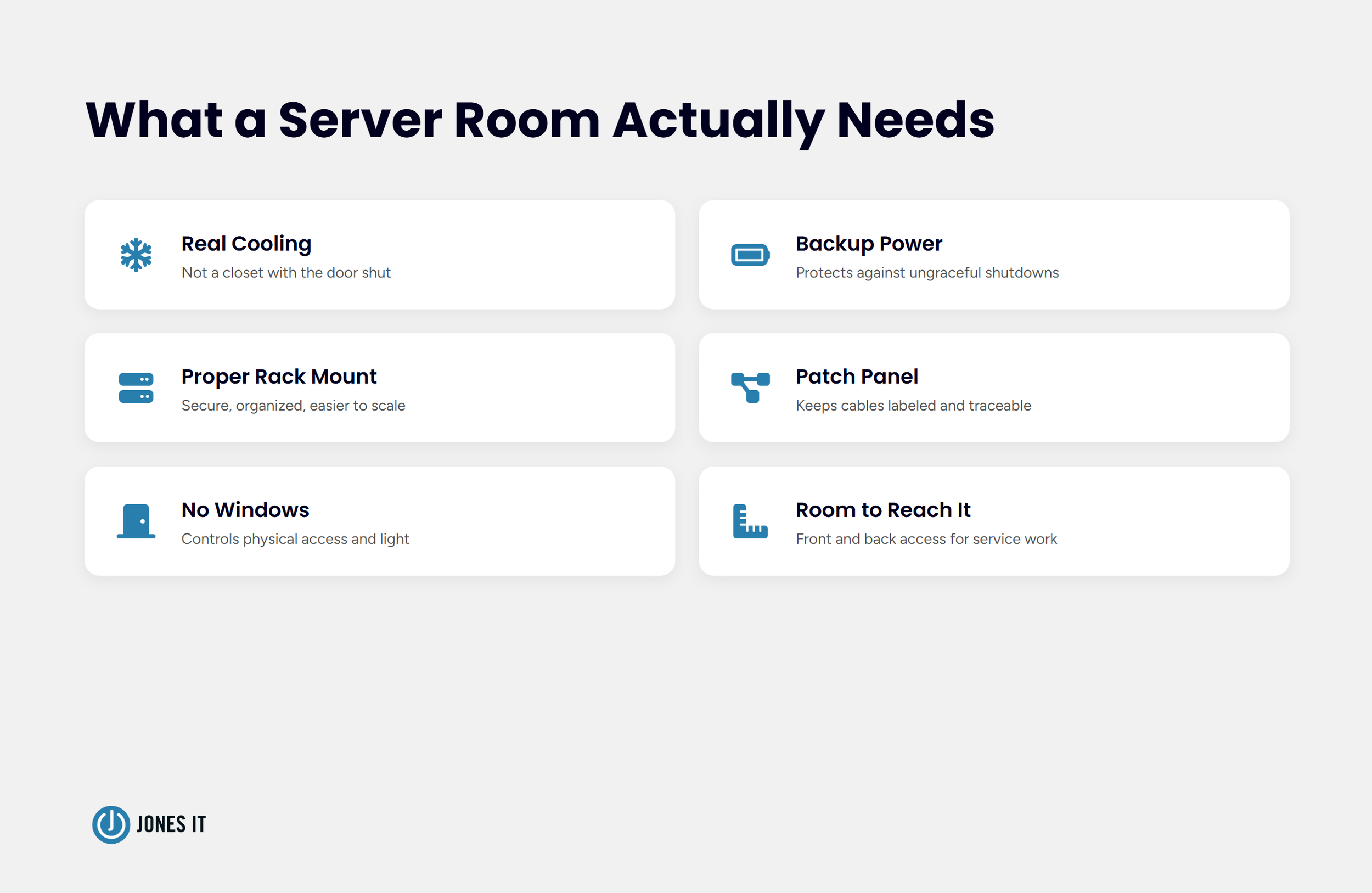
A proper server room has no windows, room to reach both the front and back of the hardware, and enough cooling capacity to run continuously. High temperatures damage server hardware faster than almost anything else, and a closet with the door shut is not a cooling plan. Backup power matters too, since a server that loses power ungracefully risks data corruption on top of the outage itself.
You can set a server on a desk or a shelf, but a proper rack mount keeps hardware secure, organized, and easier to scale later. Cable management gets overlooked constantly and shouldn't be. A patch panel and some basic labeling turn a tangled mess of cables into something a technician can actually troubleshoot without pulling the wrong wire.
None of this needs to be elaborate for a company running a single tower server. A converted utility closet with a small split-unit air conditioner and a UPS for backup power covers most small businesses just fine. The point isn't to build a data center. It's to avoid exactly what happened in SoMa, where a completely reasonable piece of hardware failed because of completely avoidable environmental factors.
What Happens After the Hardware Arrives
Once you've settled on hardware, an operating system, and a location, installing the OS itself isn't much different from installing one on a desktop, whether from a USB drive, a DVD, or virtual media. Some servers ship with the OS preinstalled, in which case you can skip straight to configuration.
Basic configuration after that covers setting an administrator password, connecting the server to your network, joining client computers to it, setting up remote access, and configuring backups and a firewall. The exact steps shift depending on whether the server is handling files, a database, email, or something else entirely. This is also the point where a lot of the OS choice from the previous section stops being abstract. A Windows Server domain controller setup looks and feels very different from configuring Samba file sharing on Ubuntu, even though both accomplish roughly the same goal.
We've written a full step-by-step walkthrough of this process in our guide to configuring a network server, covering everything from user accounts to testing the finished setup.
Locking Down Security Before You Go Live
Your server is probably the single most important piece of hardware in your office, sitting at the center of client data, internal applications, and day-to-day operations. That makes it an attractive target. Web and mail servers face direct exposure to the internet, and even a server with no direct internet connection can be reached through lateral movement from elsewhere on your network. Phishing emails, unsecured open ports, and unpatched software are still the most common ways attackers get in, not sophisticated zero-days.
The basics are worth doing before the server ever touches production traffic: unique credentials for every user, current antivirus and anti-malware software, a properly configured firewall, and a real backup strategy rather than an assumption that the hardware won't fail.
We've covered this in full in our server security best practices post, which is worth reading in full before your server goes live rather than after something goes wrong.
Server Setup Checklist
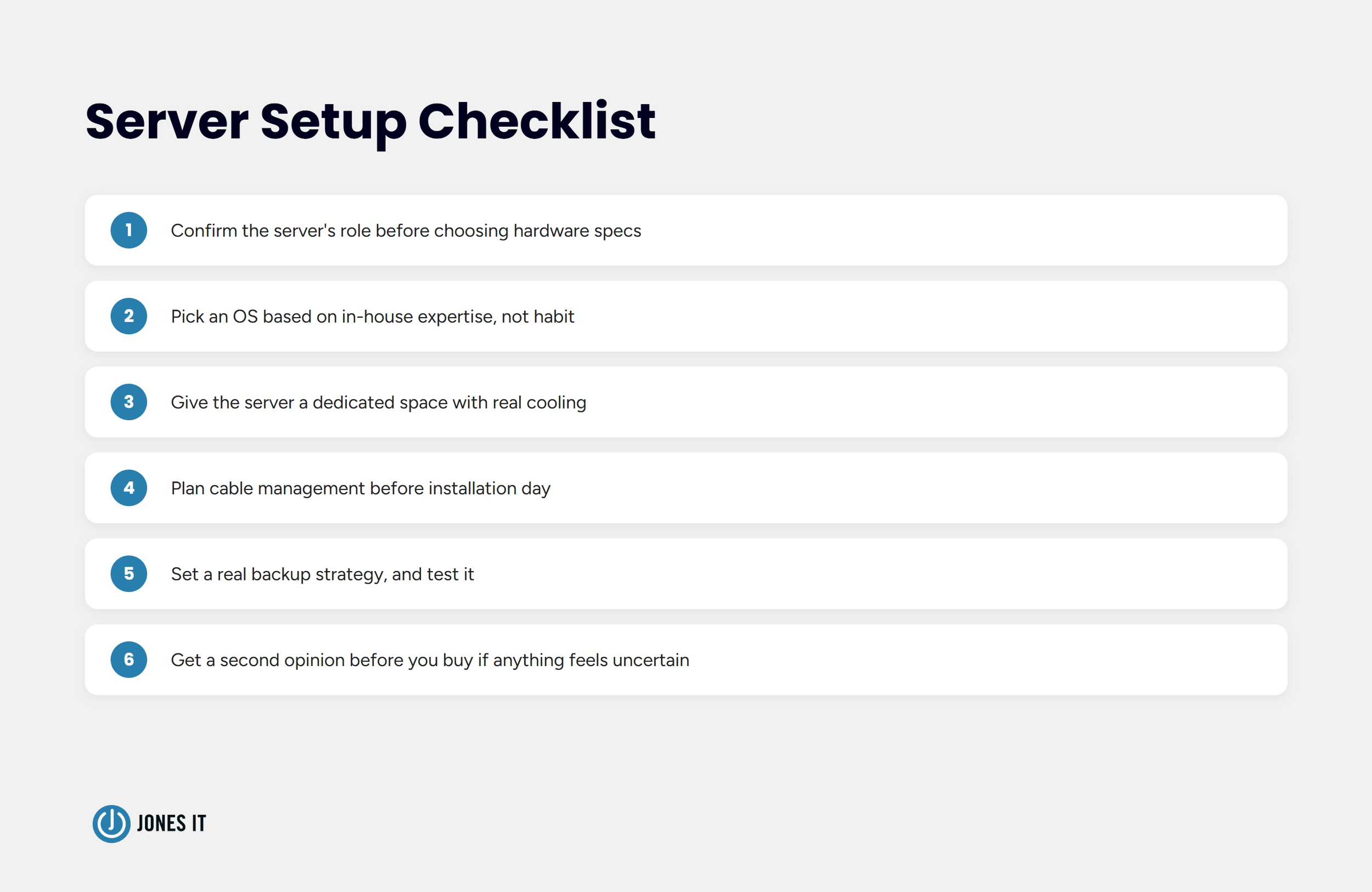
Before you commit to a specific purchase or begin your installation, use this checklist to verify your order of operations. It summarizes the foundational decisions covered in this guide, ensuring you’ve addressed the essential constraints: hardware, OS, environment, and security, before you pull the trigger.
Confirm the server's role (file, database, web, mail, print, domain, or application) before choosing hardware specs. A vague sense of "we need a server" leads to over-buying or under-buying almost every time.
Pick an operating system based on in-house expertise and support needs, not habit. If CentOS is on your list because an old guide mentioned it, replace it with Rocky Linux or AlmaLinux.
Give the server a dedicated space with real cooling, not a closet with the door shut.
Plan cable management and a patch panel before installation day, not after the cables are already a mess.
Set a real backup strategy and test it, since an untested backup is a guess, not a plan. A restore that fails during an actual outage is worse than having no backup plan at all, because it creates false confidence right up until the moment you need it.
Get a second opinion before you buy if any of the above feels uncertain. It's a cheaper conversation than a failed setup.
Getting the Order Right Matters More Than Any Single Step
None of these five decisions, hardware, operating system, location, configuration, security, is especially complicated on its own. What trips businesses up is skipping ahead: buying hardware before deciding on an OS, or installing a server before deciding where it will actually live. Getting the order right is most of the battle.
The SoMa startup's server, for what it's worth, was fine once it had somewhere reasonable to live. Nothing about the hardware changed. The environment around it did.
Reach out to us if you'd like help planning a server setup from the ground up, or a second opinion on a setup that's already underway.




Master the device reassignment process. Learn how to securely reset, verify, and reissue Mac and Windows company laptops while meeting compliance standards.