
The company had five open engineering roles and filled all of them in the same month. For an AI startup with a distributed team across three time zones, that kind of hiring velocity felt like a win. Then the devices started shipping.
The first laptop arrived for an engineer in Austin with no MDM enrollment, no configuration profile, and no company apps. A Slack message went out asking IT for help getting set up. IT, operating out of San Francisco with no on-site presence anywhere else, spent most of that first morning on a screen-share, walking someone through manual installs. The second laptop landed in Toronto the next day. Same story. By the end of the week, IT had burned twenty hours on remote setup calls, every machine was configured slightly differently, and the CTO was quietly wondering whether the hiring surge had just created a security liability nobody had thought through.
The fix was not more IT headcount. It was zero-touch onboarding. And the reason they had not set it up already is the same reason most startups do not. Nobody had taken the time to build the prerequisites before the hiring started. We helped them build those prerequisites, and by the next hiring wave, their IT team didn’t have to take a single setup call. This post covers exactly what that process looks like.
What Zero-Touch IT Onboarding Actually Means
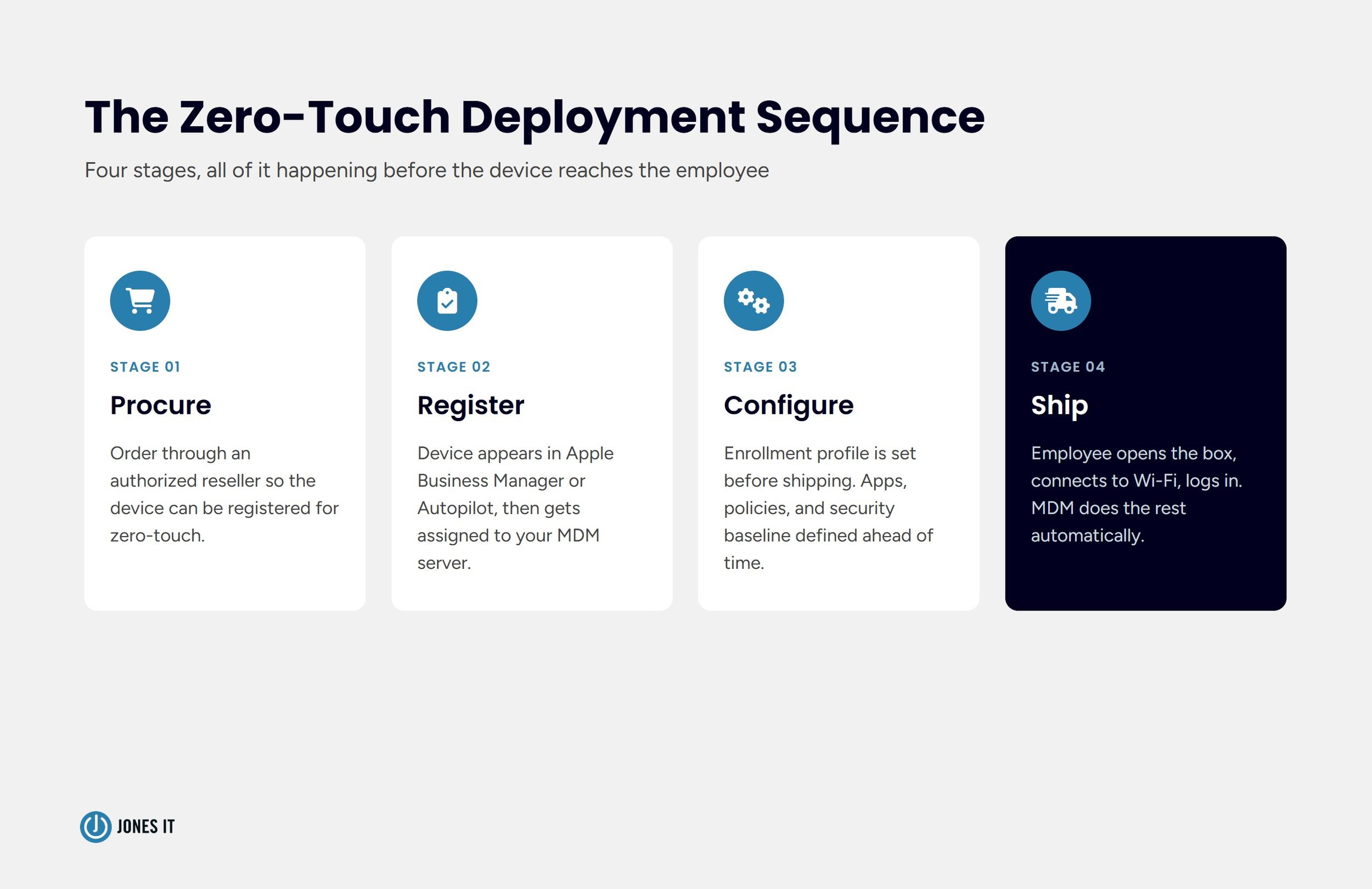
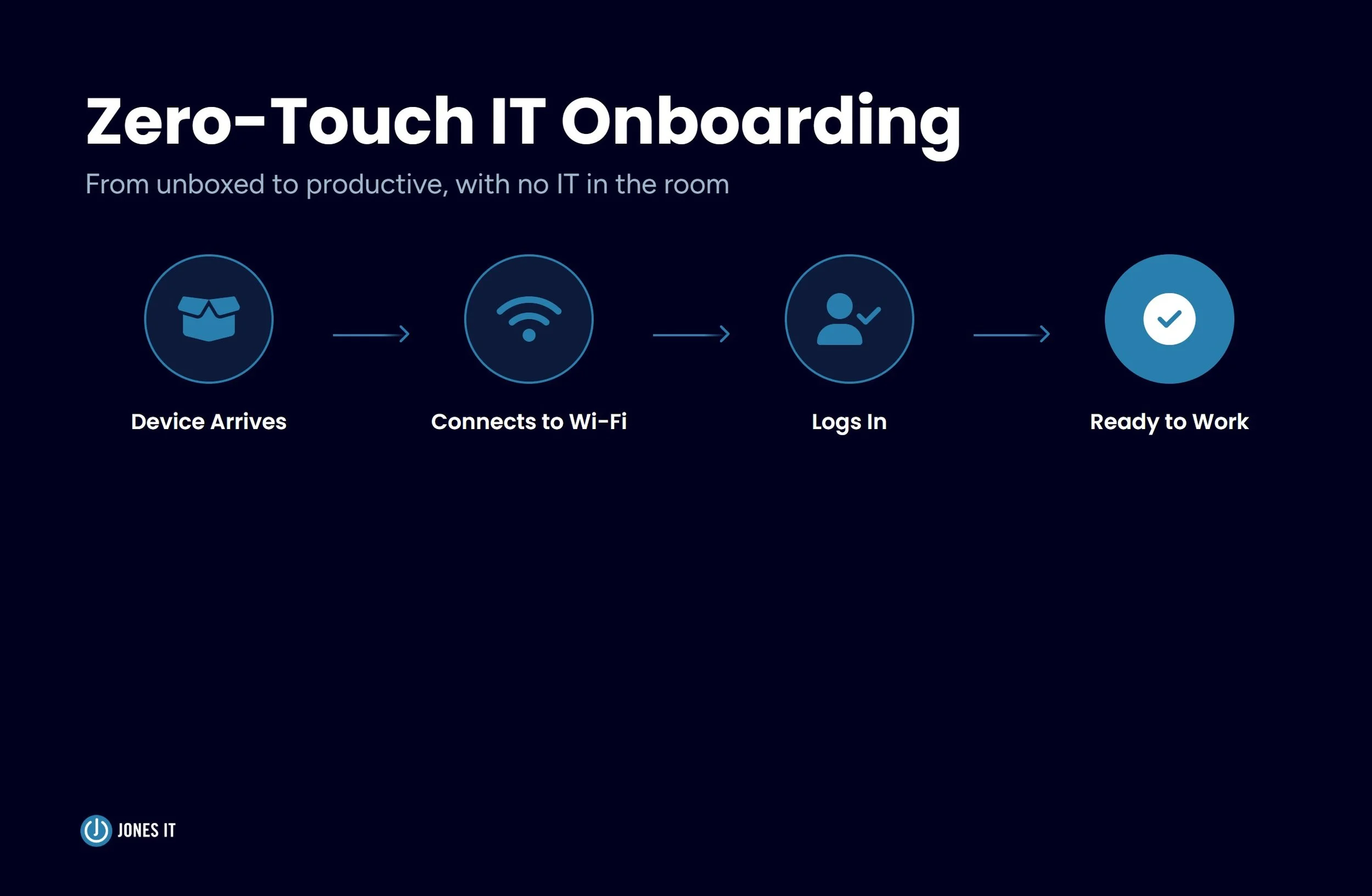
Zero-touch IT onboarding is a device deployment model where a new employee receives a laptop, powers it on, connects to Wi-Fi, and logs in with their company credentials, and from that point, the device configures itself. The MDM (Mobile Device Management) platform pushes the required applications, enforces security policies, and grants access to company resources without IT ever physically handling the hardware.
The result, when everything is set up correctly, is a new hire who is productive by 9 a.m. on day one with zero IT tickets. The alternative, which is shipping unconfigured devices and fixing them remotely, is what the AI startup was doing before they called us. For a deeper look at the device deployment workflow, refer to our post: Device Deployment and Onboarding In A Remote Environment.
One thing worth being clear about before diving into setup is that zero-touch enrollment requires deliberate work on the front end, almost all of which happens before any device ever ships. It is not something you configure in a single morning and hand off. Getting the foundation right is what makes onboarding seamless for the new hire.
The MDM Foundation: What Has to Be in Place Before Any Device Ships
Zero-touch enrollment is a feature that sits on top of your MDM platform. If the MDM foundation is not solid, zero-touch does not work reliably. We have seen enrollment failures trace back to everything from an expired Apple Business Manager token to a device that was purchased before the account was set up. Getting the prerequisites right saves a lot of painful troubleshooting later.
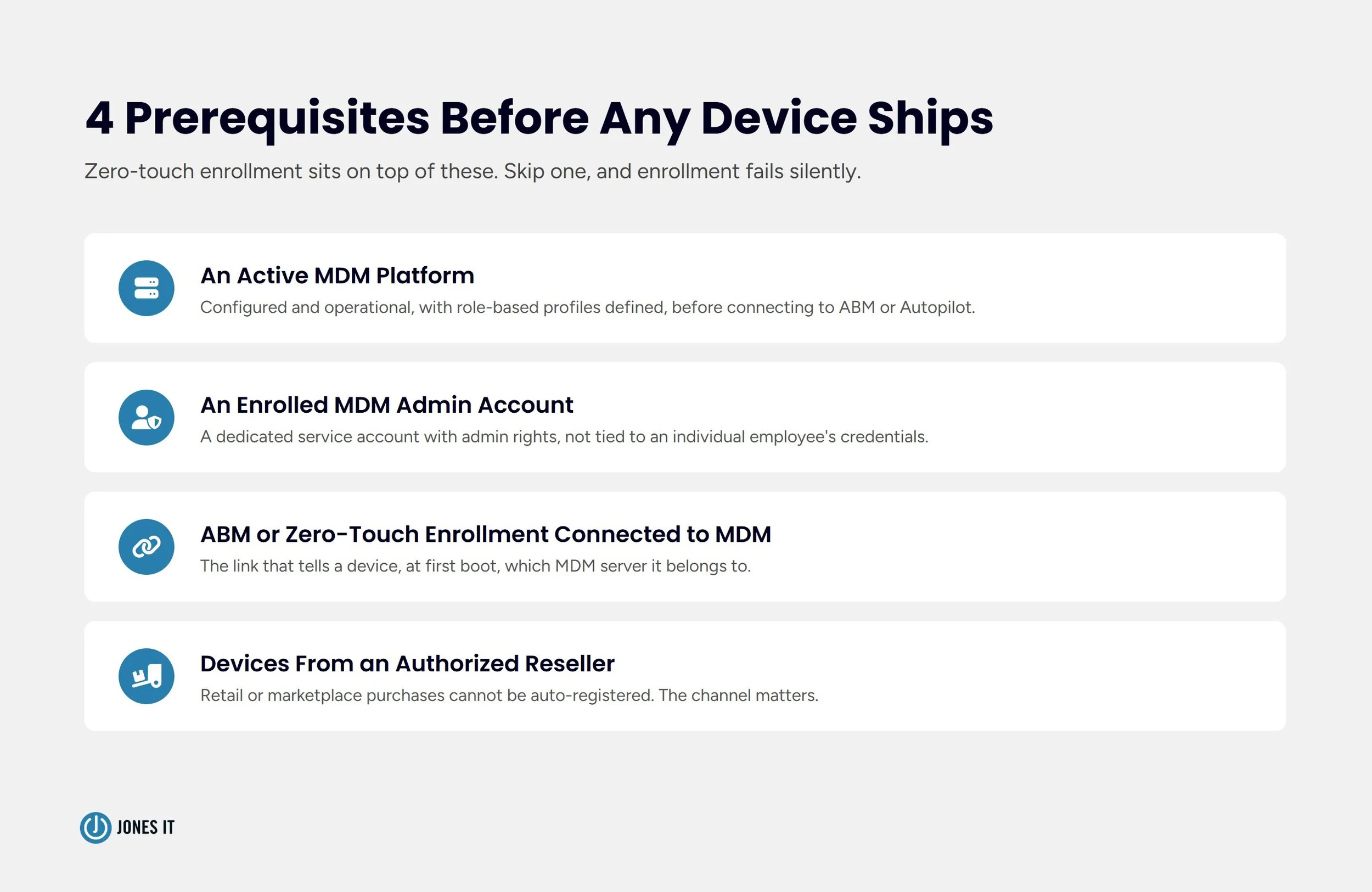
The prerequisites break down into four areas.
An Active MDM Platform
You need an MDM solution configured and operational before you connect it to Apple Business Manager or Windows Autopilot. For Mac-first teams, Iru (formerly Kandji) and Jamf Pro are the two platforms we work with the most. For Windows-dominant or mixed-fleet environments, Microsoft Intune used to be the standard choice, but we are increasingly using Iru now. If you have not yet selected a platform or are not sure which fits your environment, our post on the Importance of Mobile Device Management for Small Businesses covers the decision criteria in depth.
One thing worth doing before enrollment is to define your configuration profiles by role. Every engineer should receive the same build, and so should every ops hire. The profile should, at a minimum, enforce full-disk encryption (FileVault on Mac, BitLocker on Windows), a screen lock timer, endpoint protection, firewall, strong password and the core application set for that role. Deviating from the profile at the individual level is obtainable but defeats most of the consistency benefit that zero-touch is designed to deliver.
An Enrolled MDM Admin Account with the Right Permissions
The account used to manage your MDM instance needs administrative rights within both the MDM platform and your identity provider. If the account lapses, expires, or loses permissions mid-enrollment, devices will fail silently or reach the new hire unconfigured. We recommend using a dedicated service account for MDM administration rather than tying it to any individual employee's credentials. Proper access management is crucial; for more on this, see our guide on Employee IT Lifecycle Management: Onboarding, Roles, Offboarding.
Apple Business Manager or Windows Autopilot Connected to Your MDM
This is the link that makes automatic enrollment possible. Apple Business Manager (ABM) and Windows Autopilot are the vendor-side programs that tell a device, at first boot, which MDM server it belongs to. Without this connection, a device has no way of knowing where to enroll. The setup for each is covered in the next section.
Devices Purchased Through an Authorized Reseller or Directly from Apple or Microsoft
This is the requirement that catches people off guard most often. For zero-touch enrollment to work, the device has to be registered in Apple Business Manager or the Windows Autopilot portal. Devices purchased through an authorized reseller (Apple Authorized Resellers, CDW, Insight, and others) can be registered automatically at the time of purchase. Devices purchased at a retail store, from a third-party marketplace, or from a consumer channel can be registered, but require manual enrollment, which breaks the zero-touch model.
If your team has been buying laptops through whatever channel is most convenient, this is the moment to standardize your procurement because the reseller relationship matters.
Apple Business Manager and Automated Device Enrollment
Apple Business Manager is Apple's web-based portal that gives organizations control over Apple device deployment, app distribution, and account management. The zero-touch enrollment feature in ABM is called Automated Device Enrollment (ADE), previously known as the Device Enrollment Program (DEP). If you see DEP mentioned anywhere in your MDM platform's documentation, it refers to the same program under its earlier name.
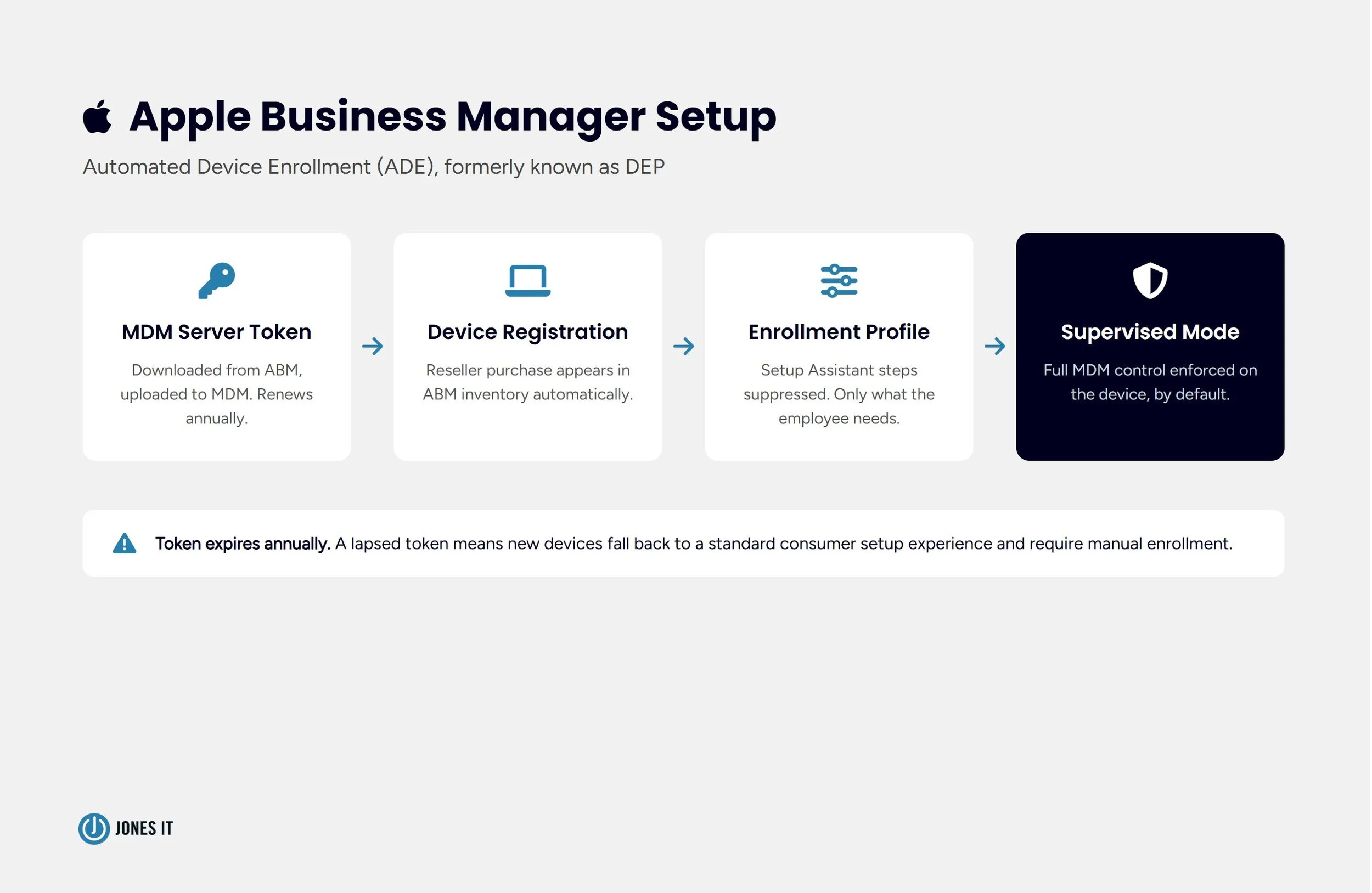
Setting up ADE requires linking ABM to your MDM platform. The connection is established through an MDM server token, a certificate file that you download from ABM, and upload into your MDM. The token expires annually and must be renewed, and if it lapses, new devices will fail to enroll automatically. When that happens, a device that should have self-configured at first boot instead presents the standard consumer setup experience, and IT has to step in and handle enrollment manually after the fact, sometimes days later, when the new hire reports that something seems wrong. Calendar reminders for that renewal date are not optional.
Once the token is in place and your MDM server is registered in ABM, new devices purchased through authorized resellers appear in your ABM inventory automatically within a few days of purchase. From there, you assign them to your MDM server within ABM, and the MDM platform handles the rest at first boot.
One procurement option worth knowing about: Apple offers a Custom Store, set up through Apple’s business sales team, which gives your organization a private online storefront pre-loaded with only the Mac models and configurations your IT team has approved. Employees or managers order from that curated list rather than from the public Apple Store, and every purchase routes through your ABM account automatically. This means the device is already in your ABM inventory before it arrives, ready to be assigned to your MDM server and enrolled into the zero-touch flow. For companies that want employees to have some hardware choice within guardrails, a Custom Store is a cleaner approach than managing ad-hoc purchase requests and chasing down receipts to verify that people bought the right model.
A few configuration decisions matter at this stage. In your MDM platform, you will set an enrollment profile that defines what the setup experience looks like for the new hire. You can suppress steps in the macOS Setup Assistant (language selection, Apple ID sign-in, screen time prompts) so the employee sees only what they actually need to interact with. Suppressing irrelevant steps reduces confusion and speeds up the first-boot experience significantly.
You will also configure whether the device is supervised. Supervised mode gives your MDM platform a higher level of control over the device, including the ability to enforce restrictions that cannot be bypassed by the end user. For company-owned devices deployed to remote employees, supervised mode is the right choice. For a deeper dive into Apple-specific deployment, refer to our Best Practices for Deploying and Managing Apple Devices in Enterprise Environments.
Windows Autopilot: The Microsoft Path
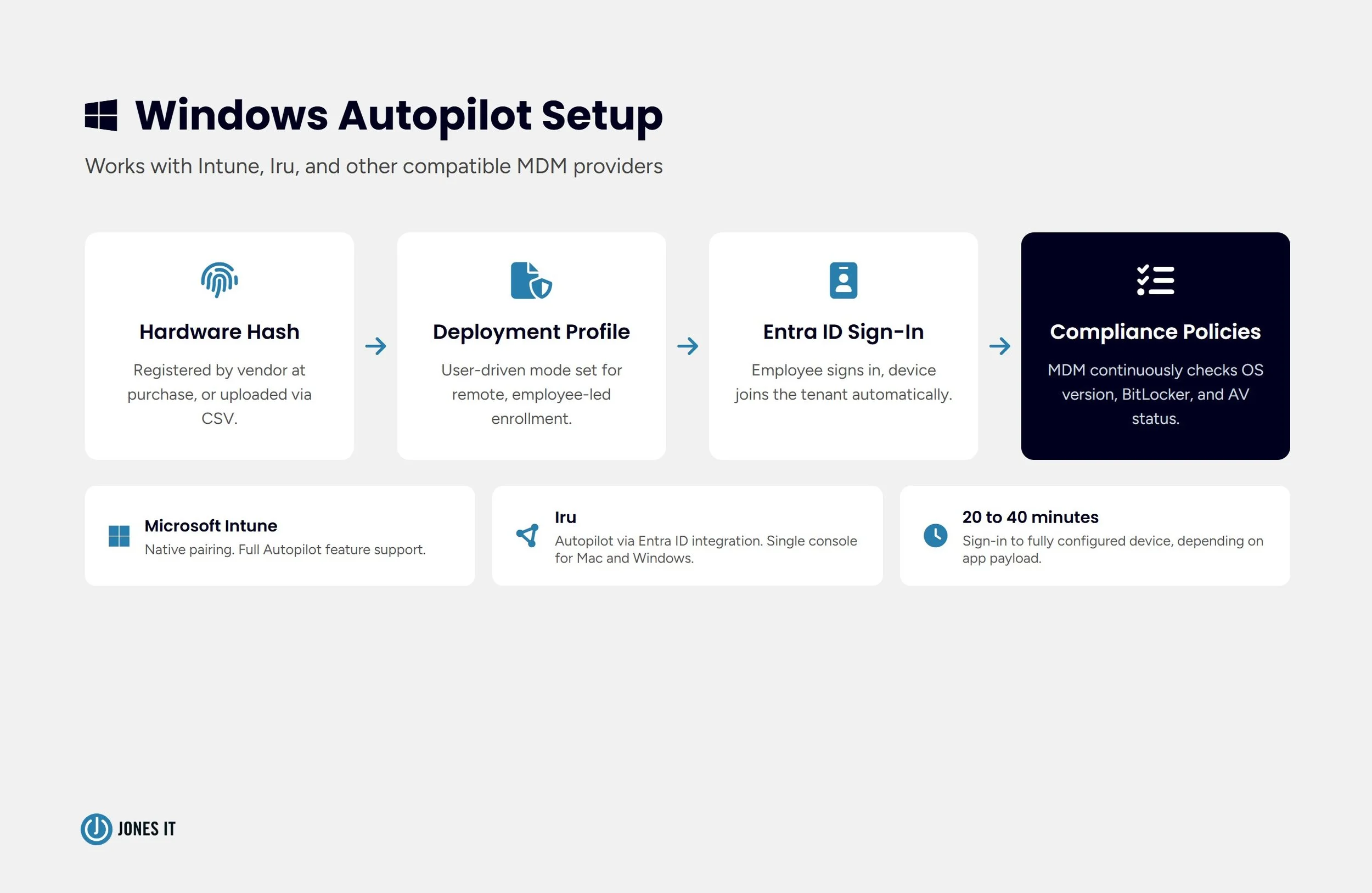
For Windows devices, the equivalent of ADE is Windows Autopilot. Unlike ADE, which is tightly integrated with Apple Business Manager, Autopilot is MDM-agnostic, i.e., it works with Microsoft Intune, and also with third-party MDM platforms including Iru. The setup logic is the same regardless of which MDM you pair it with. Devices are registered in the Autopilot service, assigned a deployment profile, and at first boot they contact your MDM and configure themselves based on the profile you have defined. Intune is the native pairing and gets the most complete Autopilot feature support. Iru connects to the Autopilot flow via Entra ID integration, and for teams already running Iru for their Mac fleet, this means a single MDM platform handling zero-touch enrollment across both operating systems.
Windows Autopilot registration works through your hardware vendor (Microsoft's authorized resellers, Dell, Lenovo, HP, and others can register devices directly into your tenant) or through a CSV file containing device hardware IDs that you upload to the Autopilot portal. The reseller path is far easier at scale. If you are purchasing devices in volume, confirming Autopilot registration at time of order is a step worth building into your procurement checklist.
The deployment profile controls the out-of-box experience the employee sees. For remote deployments, a user-driven deployment mode is typically the right choice: the employee signs in with their Azure AD or Entra ID credentials during setup, Autopilot joins the device to your tenant, and the MDM platform pushes the configuration profile and required applications. The process takes 20 to 40 minutes depending on application payload size, and the employee can track progress on screen.
One important distinction from ABM is that Autopilot devices do not need to be purchased from a specific channel in the same way Apple devices do, but the hardware hash registration step is non-negotiable. If a device is not registered in Autopilot before it ships, it will not self-configure at first boot.
The Windows equivalent of supervised mode is device compliance enforcement via your MDM platform. Once the device is enrolled, the MDM continuously evaluates it against the compliance rules you define, things like minimum OS version, BitLocker status, and antivirus state, and can block access to company resources if a device falls out of compliance. For a remote workforce where IT never physically touches the hardware, that continuous enforcement is what gives you confidence the fleet is actually in the state you think it is. From the employee’s perspective, the experience after first-boot setup is seamless: they sign in, wait for applications to install, and everything is ready.
Common Pitfalls That Break Zero-Touch in the Real World
Setting up zero-touch onboarding is not especially complicated, but a handful of issues come up consistently enough that they are worth knowing about before you hit them.
DEP Enrollment Timing
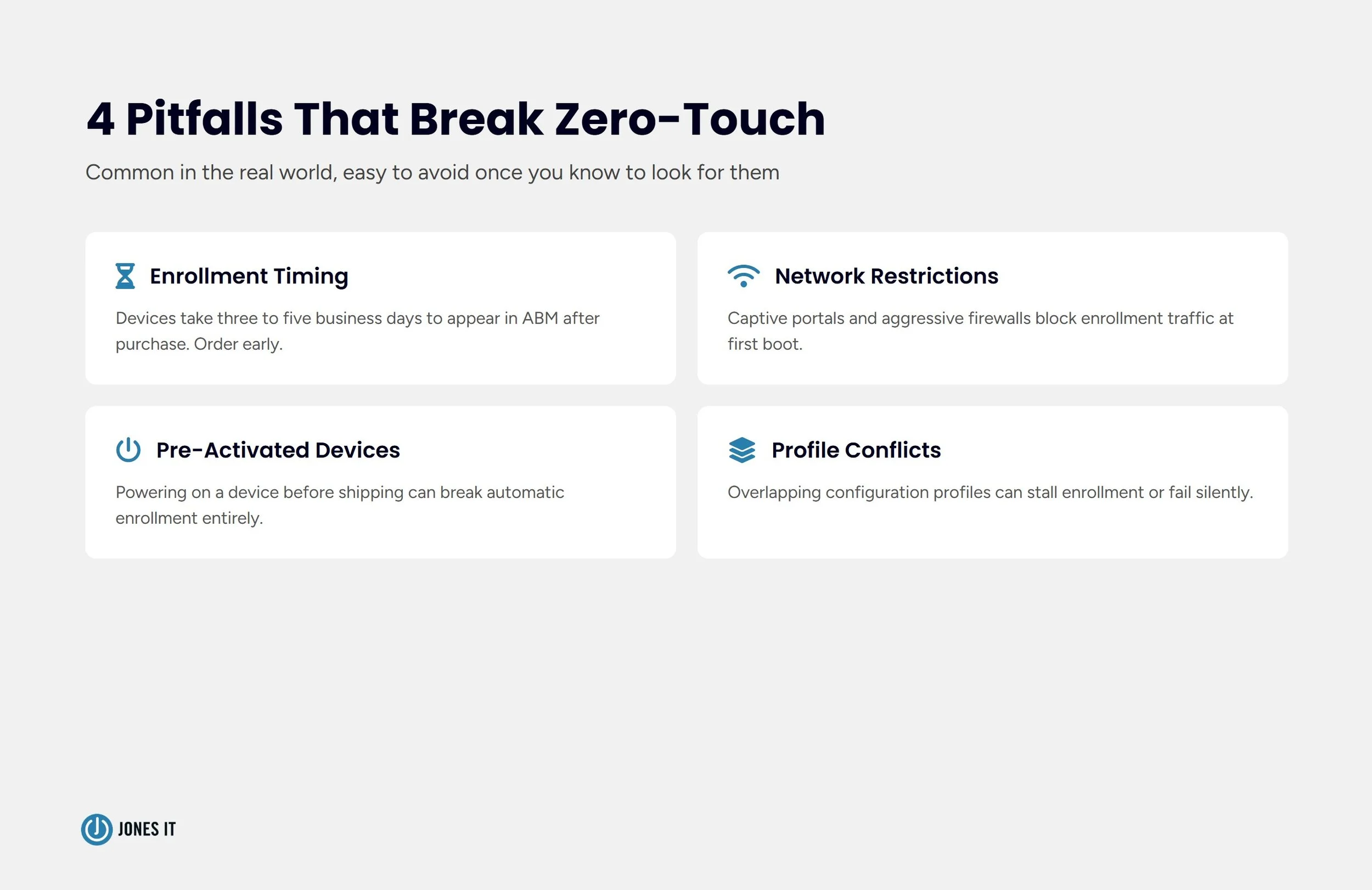
There is a lag between when a device is purchased and when it appears in Apple Business Manager. The device typically shows up within three to five business days of purchase, but it can take longer depending on the reseller. This lag is why you should assign the device to your MDM server before it appears in ABM. Nothing breaks, but you cannot complete the MDM assignment until the device is in your inventory. For startups with tight hiring timelines, this lag needs to be accounted for in your procurement lead time. Order devices early enough that ABM registration completes before you need to ship.
Network Restrictions at First Boot
Zero-touch enrollment requires internet access at the moment the device first boots. If the employee's home network has unusual DNS settings, a captive portal, or a firewall that blocks the enrollment endpoints, the device will fail to contact the MDM server, and the automated setup will not run. Apple's ADE uses specific Apple-managed URLs for enrollment traffic, and Microsoft Autopilot has its own set. Both are publicly documented, and both need to be reachable from whatever network the device first connects to.
For most employees on residential internet, this is not an issue. It becomes an issue when employees work from corporate guest networks, certain hotel networks, or shared office spaces with aggressive firewall policies. A simple note in your new hire welcome message asking them to connect to their personal home Wi-Fi for the first boot catches most of these cases before they become a support call.
Devices That Were Previously Activated
A device that was powered on and activated outside your MDM environment, even briefly, may not enroll automatically through ADE or Autopilot. This most commonly happens when IT staff or resellers turn on devices to check them before shipping. An activated Mac that was never enrolled in ABM will not self-configure at first boot at the employee's home. Instead, it will boot to a standard consumer setup experience and require manual enrollment after the fact.
The rule we follow is that devices designated for zero-touch deployment should not be powered on by anyone before shipping. If a device needs to be inspected, the inspection happens before it is assigned to a specific employee, and it is erased and restored to factory state before shipment if it was activated during inspection.
Configuration Profile Conflicts
If you have multiple configuration profiles pushing overlapping settings (for example, a baseline security profile and a department-specific profile that both attempt to manage FileVault), conflicts can cause enrollment to stall or produce unexpected behavior. A clean architecture has one baseline profile applied to all devices and role-specific profiles layered on top, with each profile managing a distinct set of settings. Profile organization matters, and you should audit your profiles before you scale.
When to Hand This to an MSP
There is a version of zero-touch onboarding that an internally managed IT team can run effectively, and there is a version that quietly generates more issues than it resolves. The difference usually comes down to team size, hiring velocity, and how much MDM expertise exists in-house.
If your company is onboarding more than four or five remote employees per month, managing a mixed Mac and Windows fleet, operating across multiple time zones, or working toward compliance requirements like SOC 2 or HIPAA, the operational overhead of managing zero-touch enrollment internally starts to outpace the savings. MDM token renewals, Autopilot registration edge cases, profile conflict debugging, and the occasional device that arrives at an employee’s home and refuses to enroll are all the kinds of issues that take disproportionate time to resolve without deep platform experience.
An expired ABM token that goes unnoticed for two weeks means every device shipped in that window required a manual IT intervention. A profile conflict that causes FileVault to fail silently means a fleet of nominally enrolled devices that are not actually encrypted. Neither of these announces itself until someone looks for it.
An MSP that manages MDM as a core service has the documentation and the pattern recognition to catch these issues before they compound. The question is not whether your team is capable of learning this. The question is whether learning it is the best use of their time.
If you are evaluating whether an MSP relationship makes sense for your IT operations more broadly, our post on when startups need a managed IT provider walks through the decision in more detail.
Zero-Touch Remote Onboarding Checklist
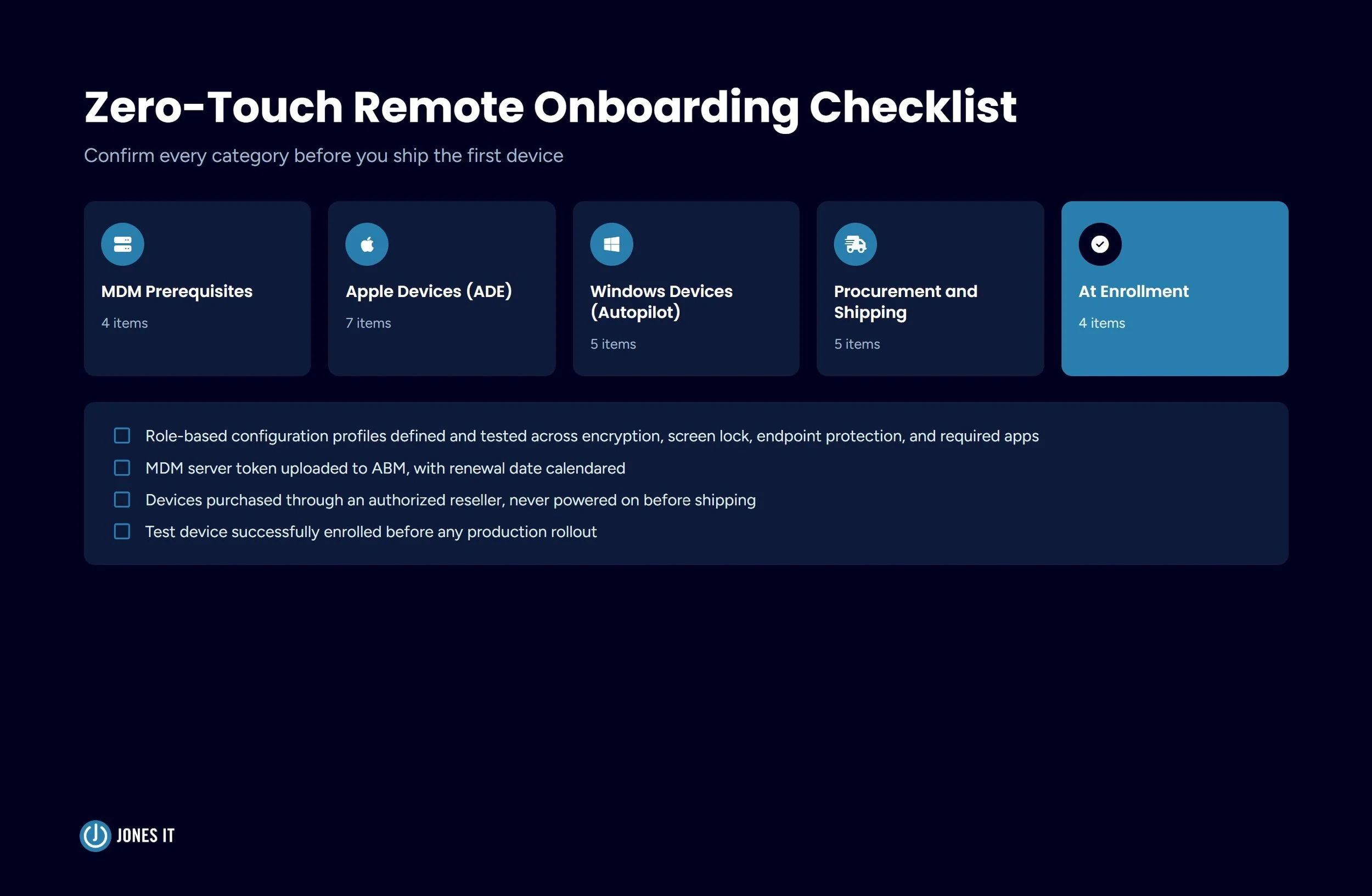
Before you ship the first device, every item in this list should be confirmed. Skipping steps produces the same result as not setting up zero-touch at all, resulting in new hires spending their first morning on IT support calls.
MDM Prerequisites
MDM platform is selected, licensed, and configured (Iru, Jamf Pro, or Intune, based on your device mix).
Role-based configuration profiles are defined and tested, covering encryption, screen lock, endpoint protection, and required applications.
The MDM admin account is set up as a dedicated service account, not tied to an individual employee.
MDM admin credentials are documented and stored securely.
Apple Devices (ADE via Apple Business Manager)
An Apple Business Manager account is created and verified at business.apple.com.
Authorized reseller is confirmed and added to ABM for automatic device registration.
The MDM server token is downloaded from ABM and uploaded to your MDM platform.
Token renewal date is calendared (annual renewal required).
The enrollment profile is configured in MDM with unnecessary Setup Assistant steps suppressed.
Supervised mode is enabled for all company-owned devices.
The test device is enrolled successfully before production rollout.
Windows Devices (Autopilot)
Microsoft Intune tenant is configured and connected to Azure AD or Entra ID.
Hardware vendor is confirmed for Autopilot registration at time of purchase, OR CSV hardware hash upload process documented for existing devices.
Autopilot deployment profile is created with the user-driven mode configured.
Required applications are published in Intune and assigned to the appropriate device groups.
The test device is enrolled successfully before production rollout.
Procurement and Shipping
Device purchase is routed through authorized resellers to ensure ABM or Autopilot registration.
The device is ordered with sufficient lead time to allow reseller registration before MDM assignment (minimum five business days for ABM).
The device is NOT powered on before shipping (activation before enrollment breaks zero-touch flow).
Shipping is timed to arrive two to three business days before the start date.
A welcome card instructing employees to connect to personal home Wi-Fi at first boot is included with devices.
At Enrollment
Confirm the device appears in the MDM console after enrollment completes.
Verify configuration profile applied correctly (encryption enabled, screen lock set, required apps installed).
Confirm the device shows as compliant in the MDM dashboard.
Log enrollment with a timestamp for the compliance record.
The Bar Worth Setting
Going back to the AI startup, after we helped them build out their zero-touch infrastructure, the next batch of new hires had a different experience. Devices arrived pre-enrolled. All the employees had to do was power on and log in with their company credentials, and watch the required applications install automatically. IT did not have to take a single setup call. And, the CTO stopped worrying about whether the security baseline was consistent across the fleet, because the MDM console made it visible in real time.
That is the bar worth setting. A new hire who opens a box, connects to Wi-Fi, and is productive by 9 a.m. with zero outstanding IT tickets. Getting there requires the upfront work described in this post, and you should be doing that work before you need it, not after the hiring surge has already started.
If you are building out remote IT infrastructure for a distributed team, or if your current device deployment process is taking more IT time than it should, we can help. Zero-touch onboarding is one of the areas we set up regularly for Bay Area startups and distributed teams across the country.
Reach out to us, and we can walk through what a zero-touch deployment looks like for your team size, device mix, and compliance requirements.

About The Author

Michael LeMayIT Systems Engineering Manager at Jones IT
Michael LeMay has spent over seven years at Jones IT, growing from consultant to team lead. Before getting into IT, he spent nearly seven years as an F-16 and C-17 jet engine mechanic in the United States Air Force. He brings that same precision and discipline to troubleshooting complex systems today.
Learn how to hand off Level 1 support to a co-managed IT help desk without losing control or dip in quality, and free up your team for strategic IT projects.